

Analysis results
Open a finished analysis, review its summary, topics and entities, then export it or share it securely.
When an analysis job finishes, its result is stored under Analyses. From there you read the AI’s conclusions, discuss them with your team, and take them outside TukiMate.
Find an analysis
- In the sidebar, open Analyses.
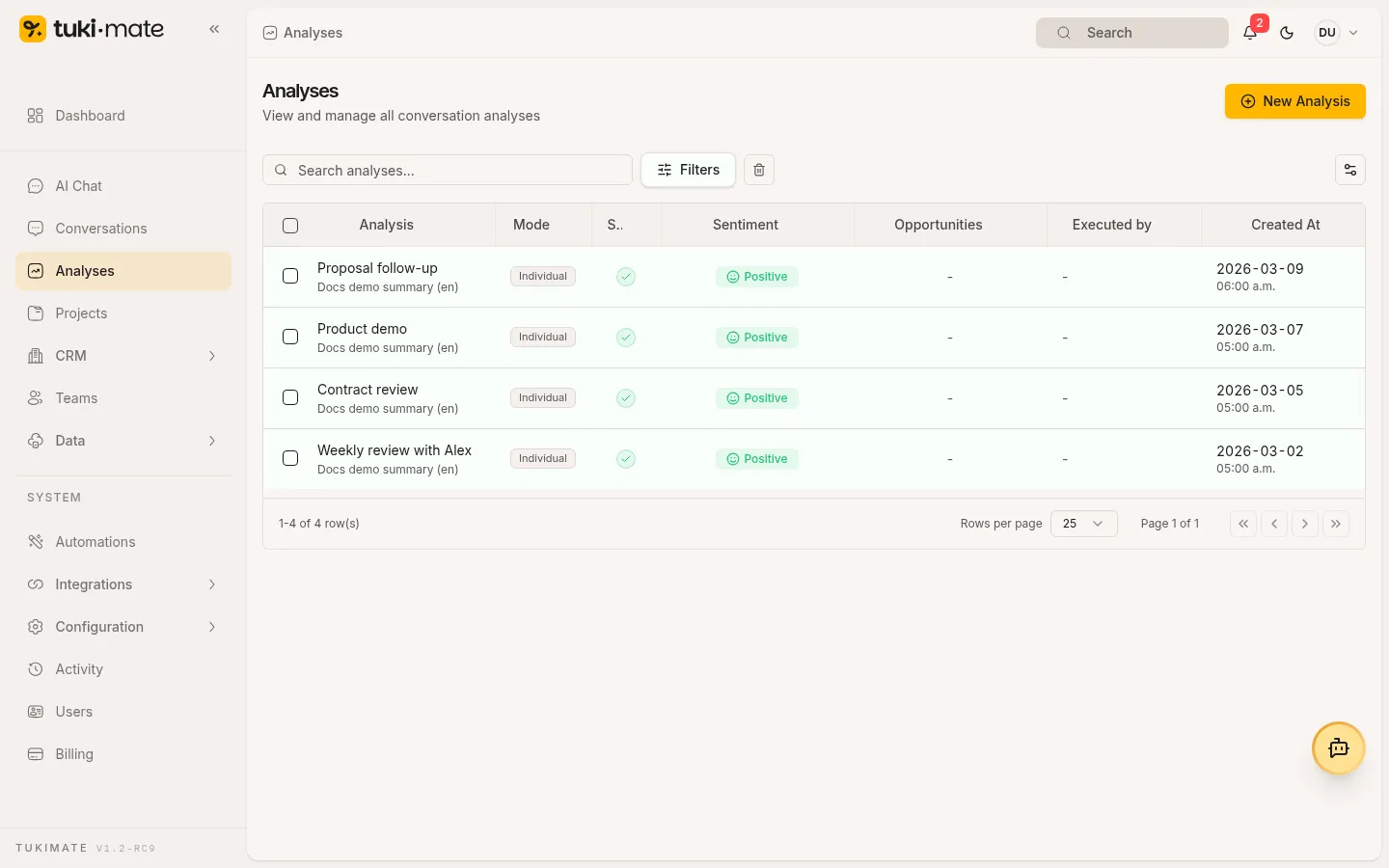
Each row shows the conversation and the configuration used, the mode, status, sentiment, detected opportunities, who ran it, and the date.
- Click a row to open its quick view.
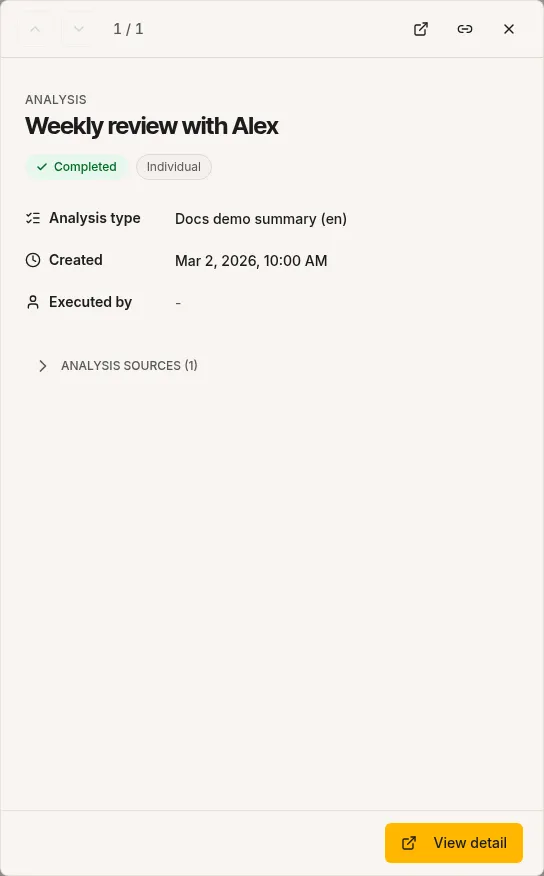
- Click View detail to open the full analysis.
Read the result
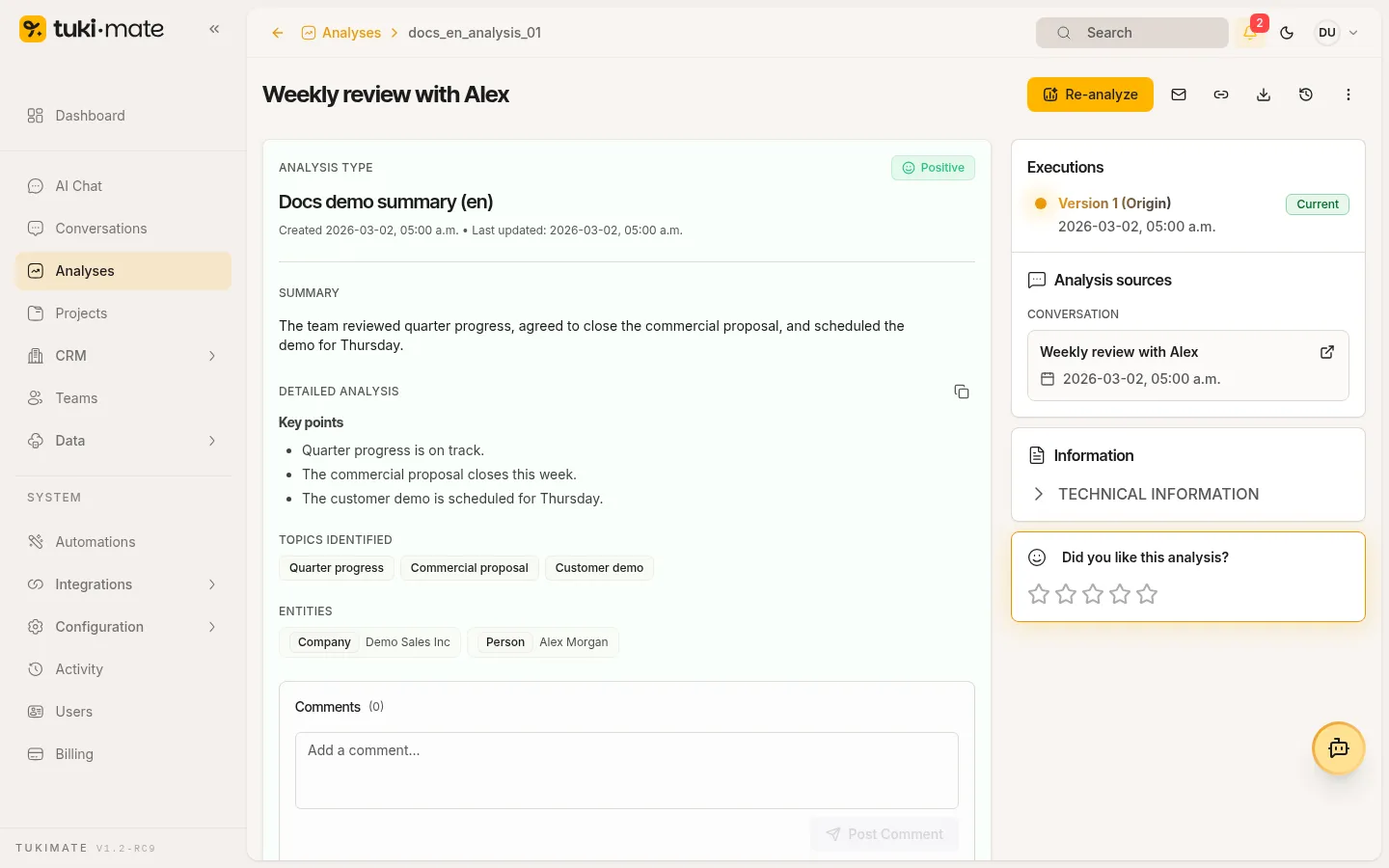
The page brings together:
- Summary: the conclusion in a few lines, with the overall sentiment as a tag.
- Detailed Analysis: the full write-up; the copy icon sends it to your clipboard.
- Topics Identified and Entities: what was discussed and which people or companies came up.
- Per-participant insights, when the configuration generates them.
- Comments: type in Add a comment… and click Post Comment.
On the right you see the Executions for that conversation, the Analysis sources (with a direct link to the conversation), and the Technical information. Use Did you like this analysis? to rate the quality of the result.
Analyze again
- Click Re-analyze to repeat the analysis with the same configuration. If you want a different analysis type, start a new one from the conversations list.
- When a conversation has several executions, use Set as current to choose which one counts as the current result.
Export the analysis
- In the analysis top bar, click the Export button.
- Pick the Format (PDF, Markdown, JSON, or CSV) and check the Content to include.
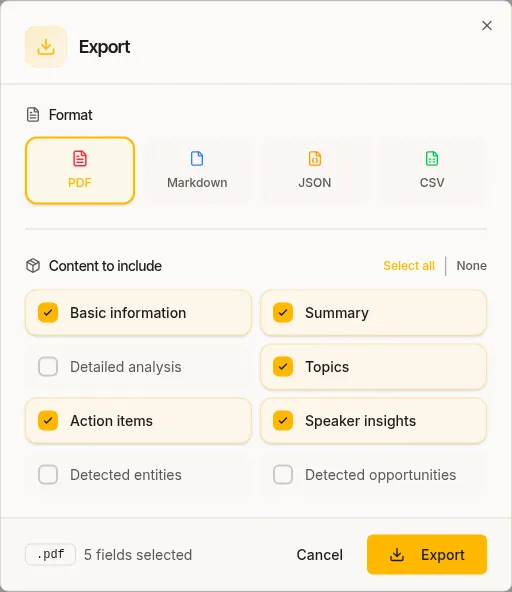
- Click Export.
Share securely
- In the top bar, click Secure Share.
- Enter each person’s email under Recipients, choose the content and the Expiration (1, 3, or 7 days) and, if you like, add a message.
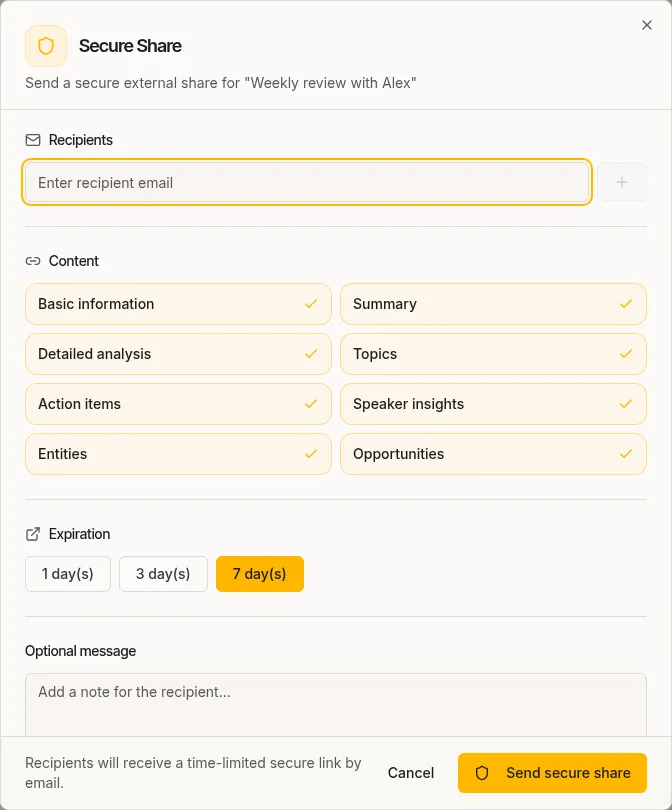
- Click Send secure share. Each recipient gets a time-limited link by email.