

Run analysis
Launch batch analyses, pick modes and configs, and track jobs.
You can ask the AI to analyze one or several conversations at once: the request is queued as a job that you can track from the jobs screen.
Launch the analysis
Select the conversations
In Conversations, check the header checkbox to select every conversation on the page.
Click Analyze
The Bulk Analysis dialog opens.
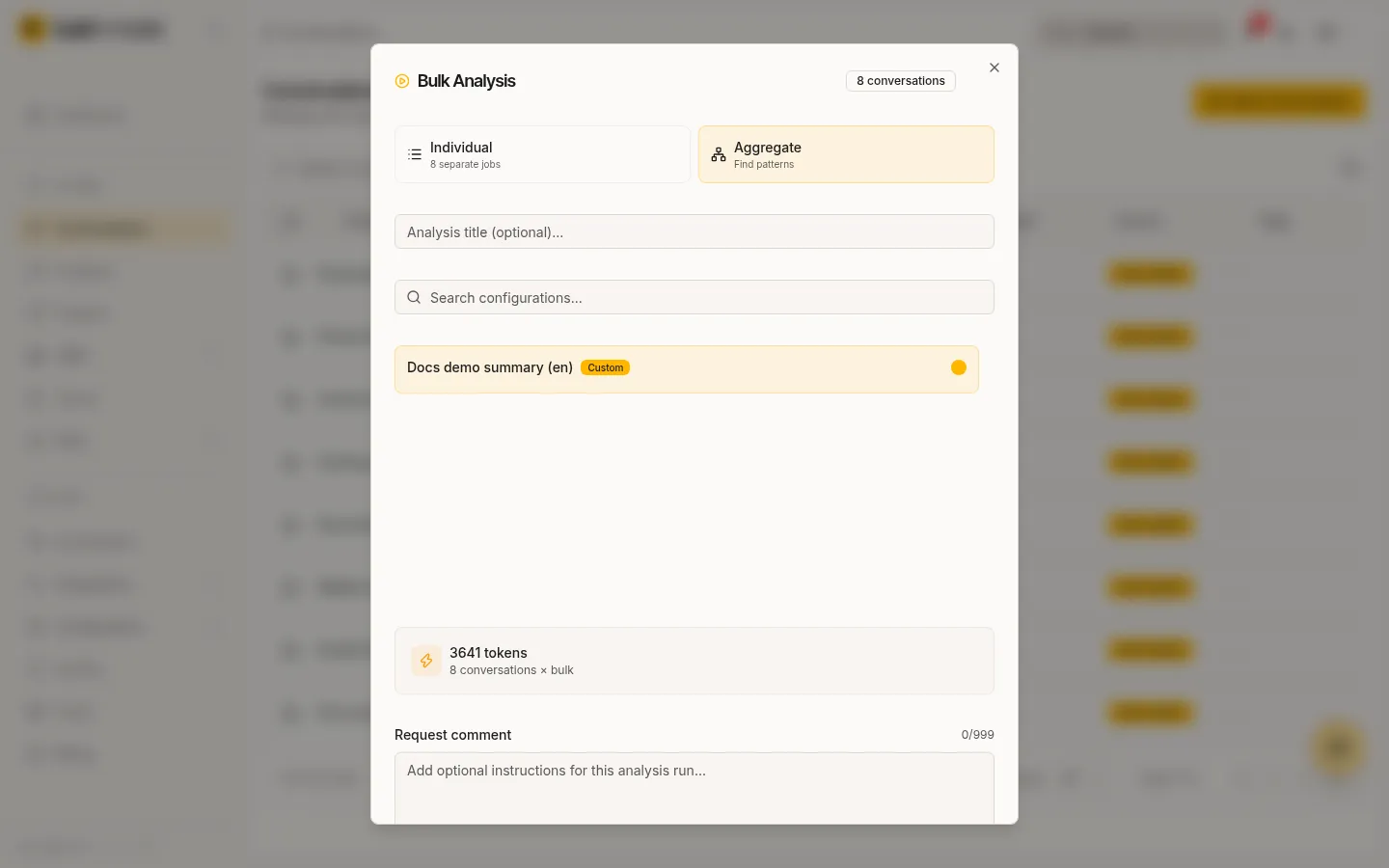
Pick the configuration
If you see none, ask an administrator to enable one.
Pick the mode
- Individual: one separate job per conversation.
- Aggregate: find patterns across the set.
Fill in the optional details
Set a title, add a comment to guide the analysis, and check the token estimate before launching.
Start the analysis
Click Start Analysis. The dialog closes and you will see a confirmation: the job is queued.
Track progress
Open the jobs
Under Configuration, open Analysis Jobs to see the status of your jobs: Queued, In Progress, Completed, Failed, or Cancelled. When a job finishes, its results appear under Analyses.