

List and filters
Find conversations by text, combine filters, and bulk-operate.
The Conversations screen gathers all your organization’s recordings and transcripts. From there you can search by text, combine filters, and operate in bulk.
Browse the list
- Open the Conversations section from the sidebar.
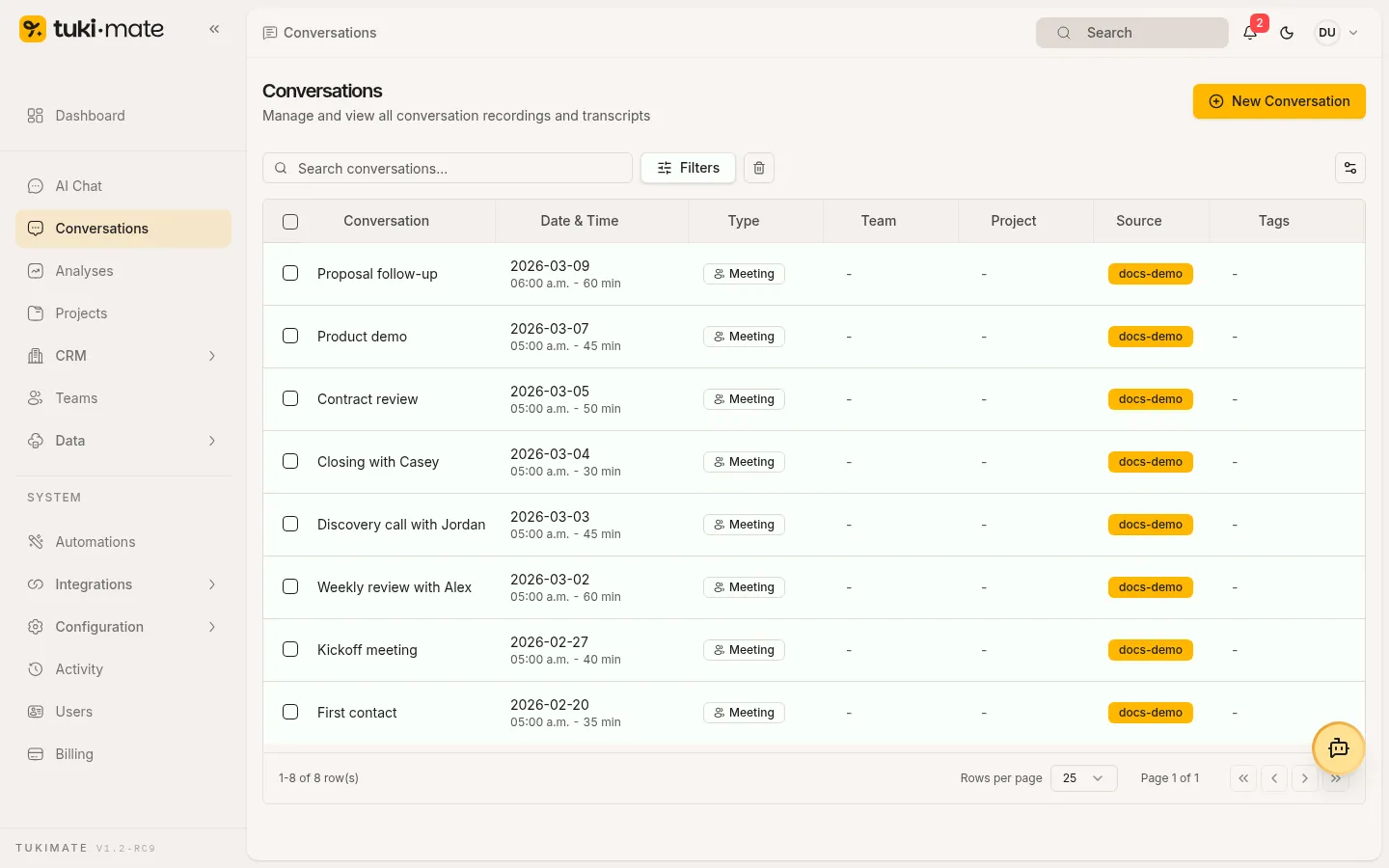
Each row shows the title, date and time, type, team, project, source, and tags. Click a row to open the quick view without leaving the list. The Team, Project, and Tags columns are edited with one click on the cell itself (see Inline editing).
Search by text
- Type in the Search conversations… field.
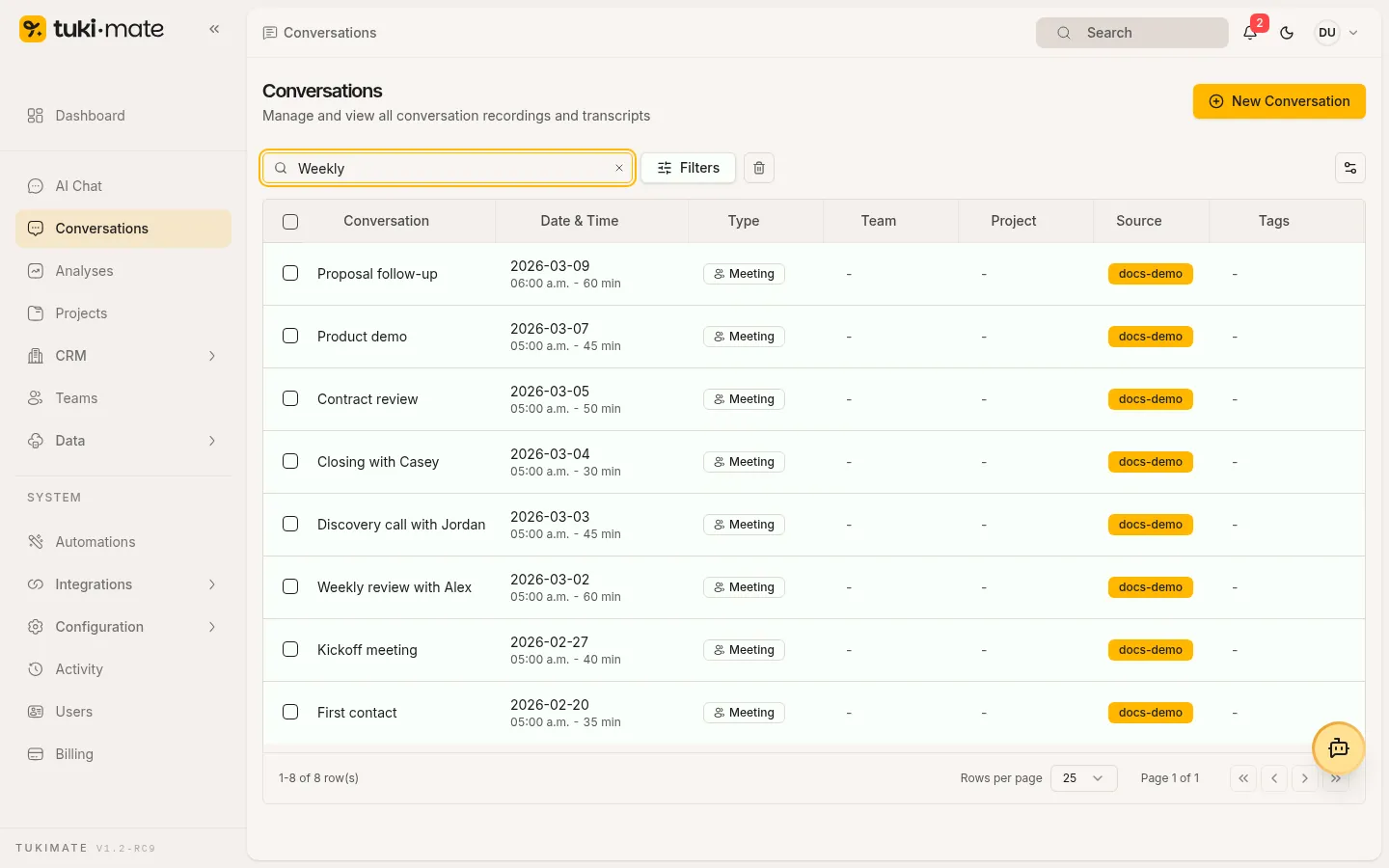
The list filters as you type. Search covers titles and transcripts.
Combine filters
- Click Filters to open the filter panel.
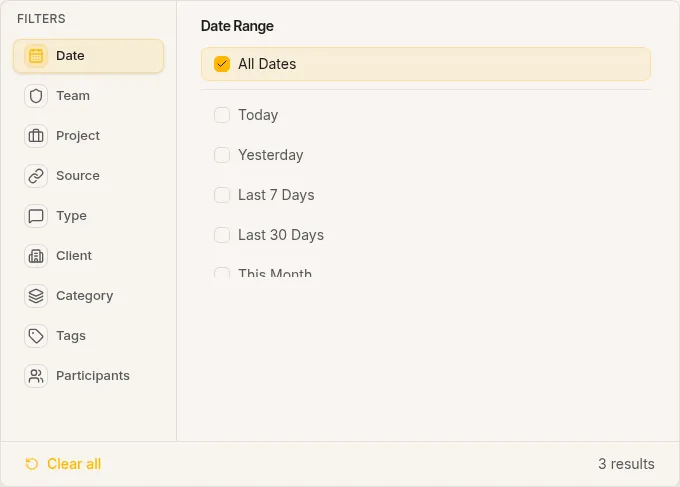
Each filter narrows the list differently:
- Team and Project: only what is assigned to that team or project.
- Source: where the conversation came from (for example, an integration).
- Type: the kind of conversation.
- Client and Category: the associated classification.
- Tags: free-form labels (matches any of the chosen ones).
- Participants: who took part; you can require an exact match or search by name or company.
- Date range: presets like today or yesterday, or a custom from/to.
Filters apply automatically and stay visible as chips you can remove one by one.
Bulk operate and sort
Check the header checkbox to select everything visible. With an active selection the action bar appears: Analyze, Assign project, Assign team, and Clear selection. Headers sort ascending and descending, and the page size can be chosen between 25, 50, and 100.
Next steps
Inline editing
Change team, project, tags, title, and descriptions straight from the list and the quick view.
Conversation detail
Tour the full page of a conversation: data, transcript, summaries, participants, analyses, and actions.
Run analysis
Launch batch analyses, pick modes and configs, and track jobs.