

Users
Invite people, change their role and team access, or remove them from the organization.
The Users screen gathers everyone in your organization and what each person can do.
See the people
- In the SYSTEM section of the sidebar, open Users.
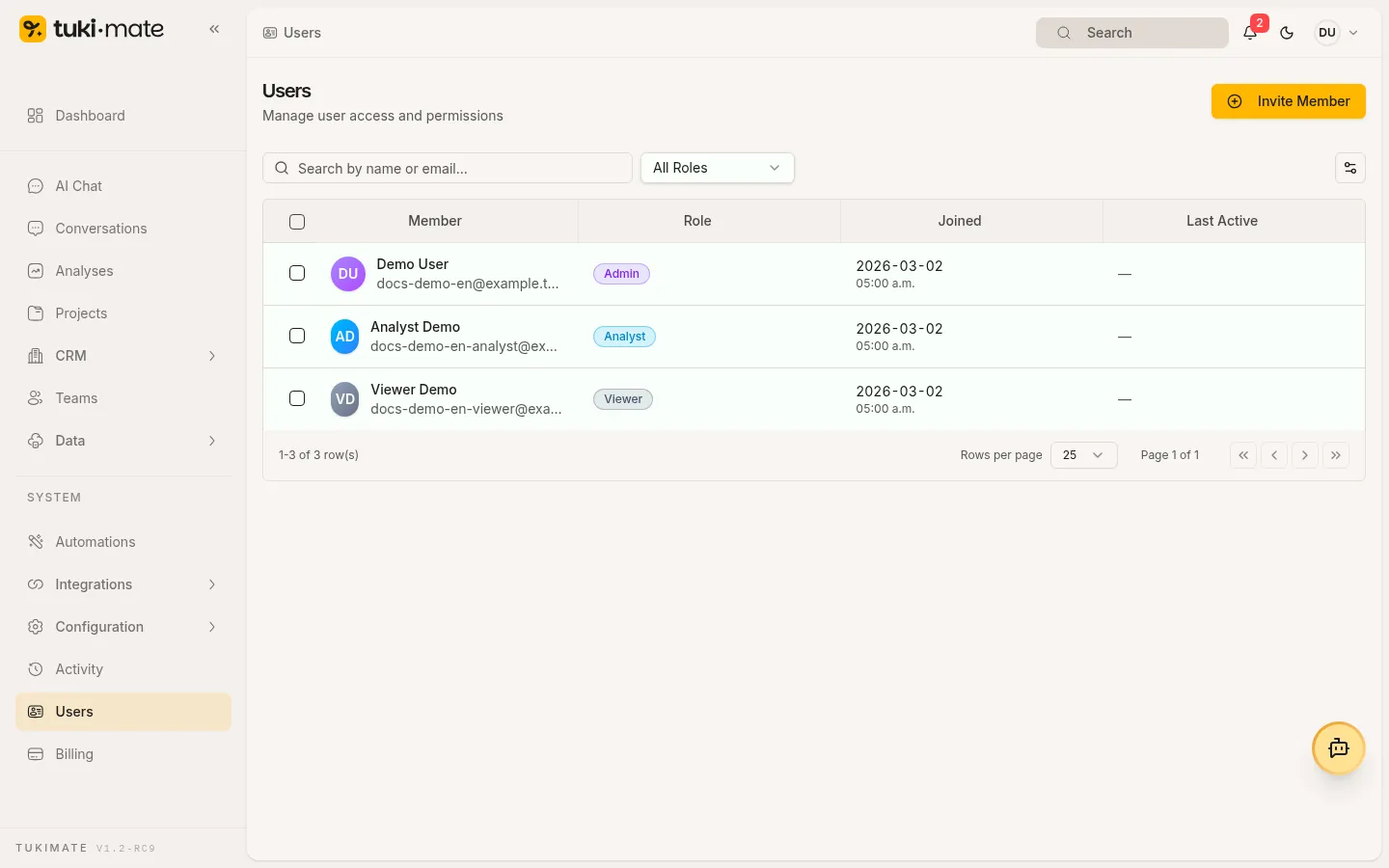
Each row shows the Member, their Role, when they Joined, and their Last Active time. Search by name or email in Search by name or email… and filter with All Roles.
Invite a person
- Click Invite Member.
- Type the Email Address and choose the Role. You only see the roles your own role lets you assign.
- Under Team Access, leave Access to all teams checked or uncheck it and pick one or more under Select Teams.
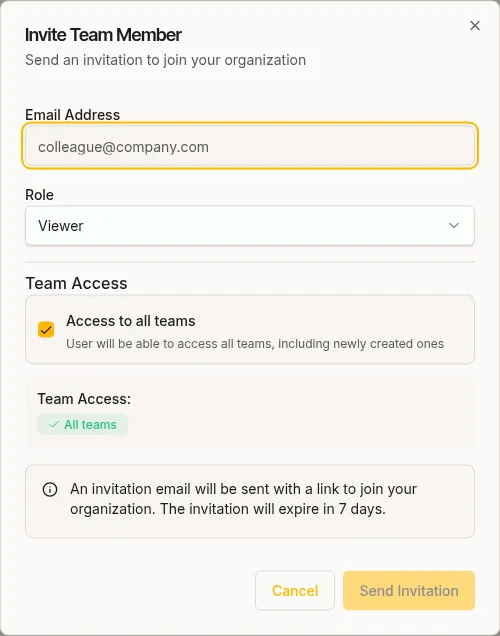
- Click Send Invitation. The person gets an email with a link to join, and the invitation expires after 7 days.
Change the role or access
- Click a person in the list to open their panel.
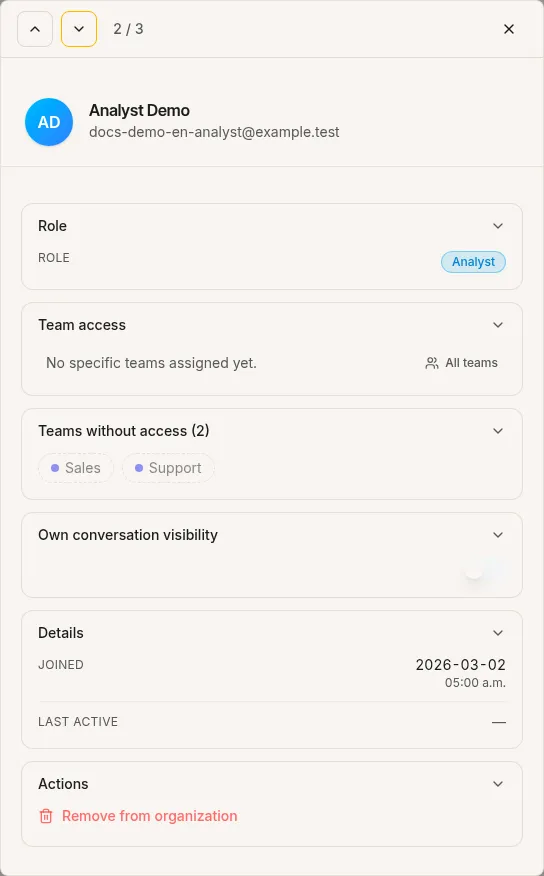
- Under Role, choose the new role and save it.
- Under Team access, use Edit team access to decide which teams they reach. Teams without access lists the ones they cannot see yet.
- With Own conversation visibility you decide whether the person Can view own conversations (the ones they uploaded) in addition to their teams’ conversations.
Remove a person
- In the panel, click Remove from organization and confirm with Remove user. The person loses access to the organization’s teams and conversations; their global account is kept.