

Roles and access
How the TukiMate menu changes with your role and what to do when a screen is not available to you.
TukiMate adapts the side menu to the role your user has in the organization. That is why two people on the same team can see different screens.
The roles
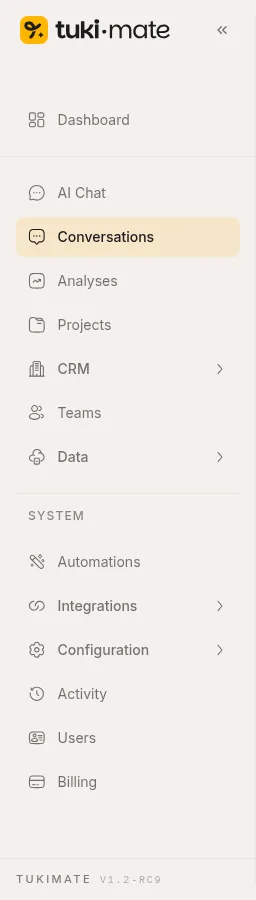
- Owner and Admin: see the whole menu, including the SYSTEM section.
- Analyst and Editor: see the work sections, but not the SYSTEM section.
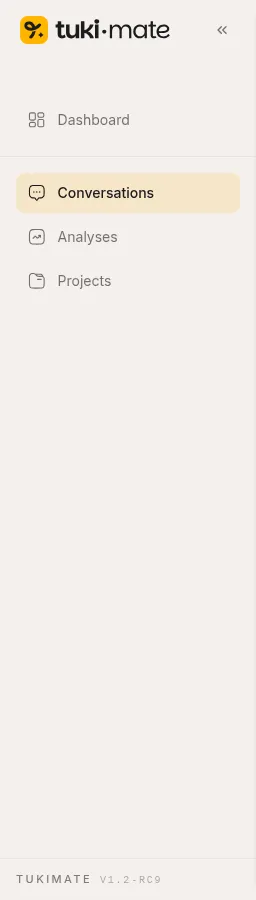
- Viewer: sees only Conversations, Analyses, and Projects.
What the menu looks like for each role
Owner or Admin. The SYSTEM section gathers the administration screens: Automations, Integrations, Configuration, Activity, Users, and Billing.
Analyst or Editor. They see CRM, Teams, Data, Integrations, and Configuration with fewer options, and do not see the SYSTEM section.

Viewer. The menu shrinks to what is needed to look at conversations, analyses, and projects.
Screens with restricted access
When a guide explains a screen that is not available to every role, it starts with a box like this:
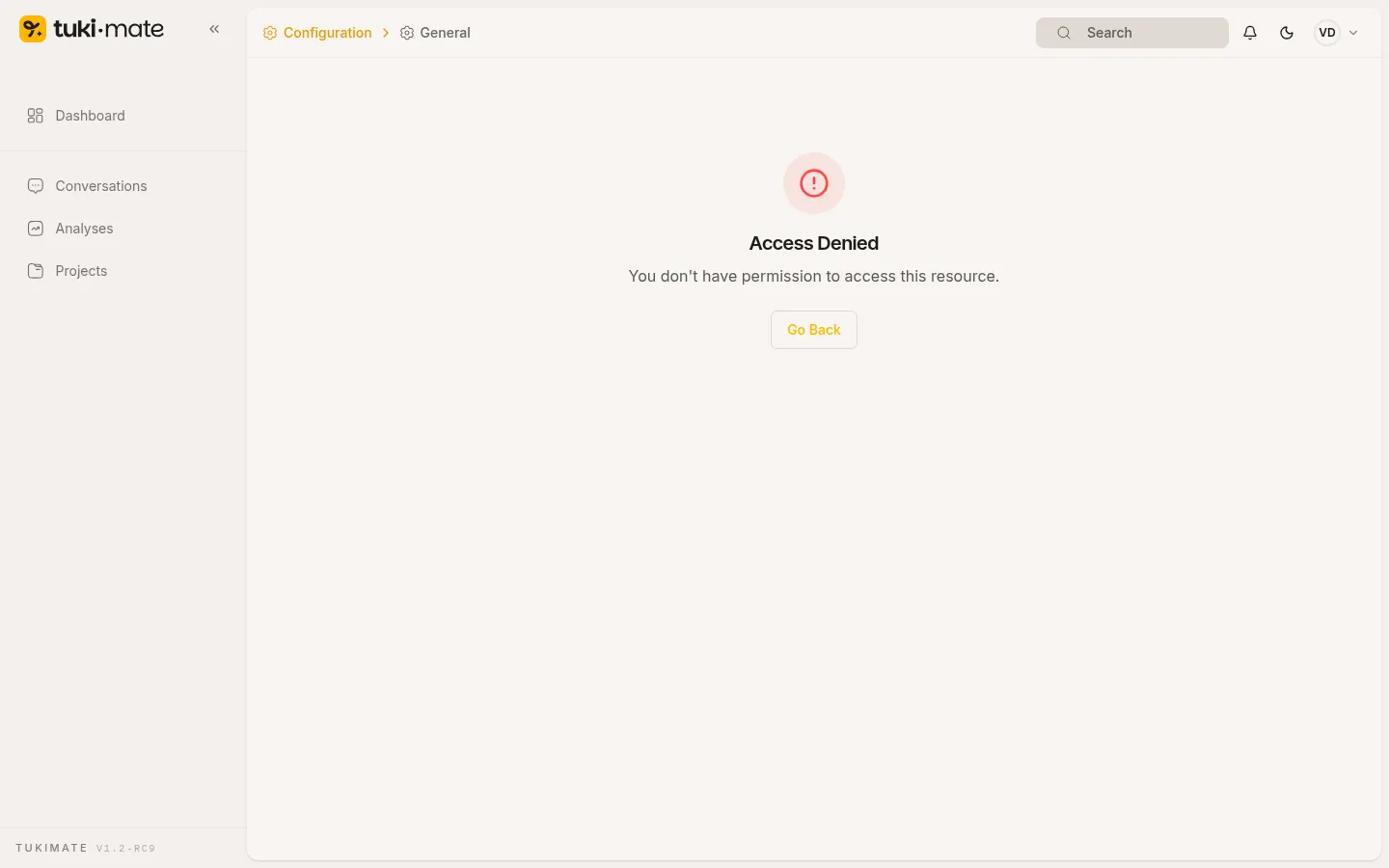
If you try to open a settings screen without the needed role, TukiMate shows Access Denied.
If you are missing access
Ask an Admin or Owner in your organization to review your role. Roles are assigned when a person is invited or from user management.