

Inline editing
Change team, project, tags, title, and descriptions straight from the list and the quick view.
You do not need to open each conversation to organize it: from the list and the quick view you can edit the data in place. Changes save on their own, with no Save button, and are recorded in the conversation’s activity.
Edit from the table
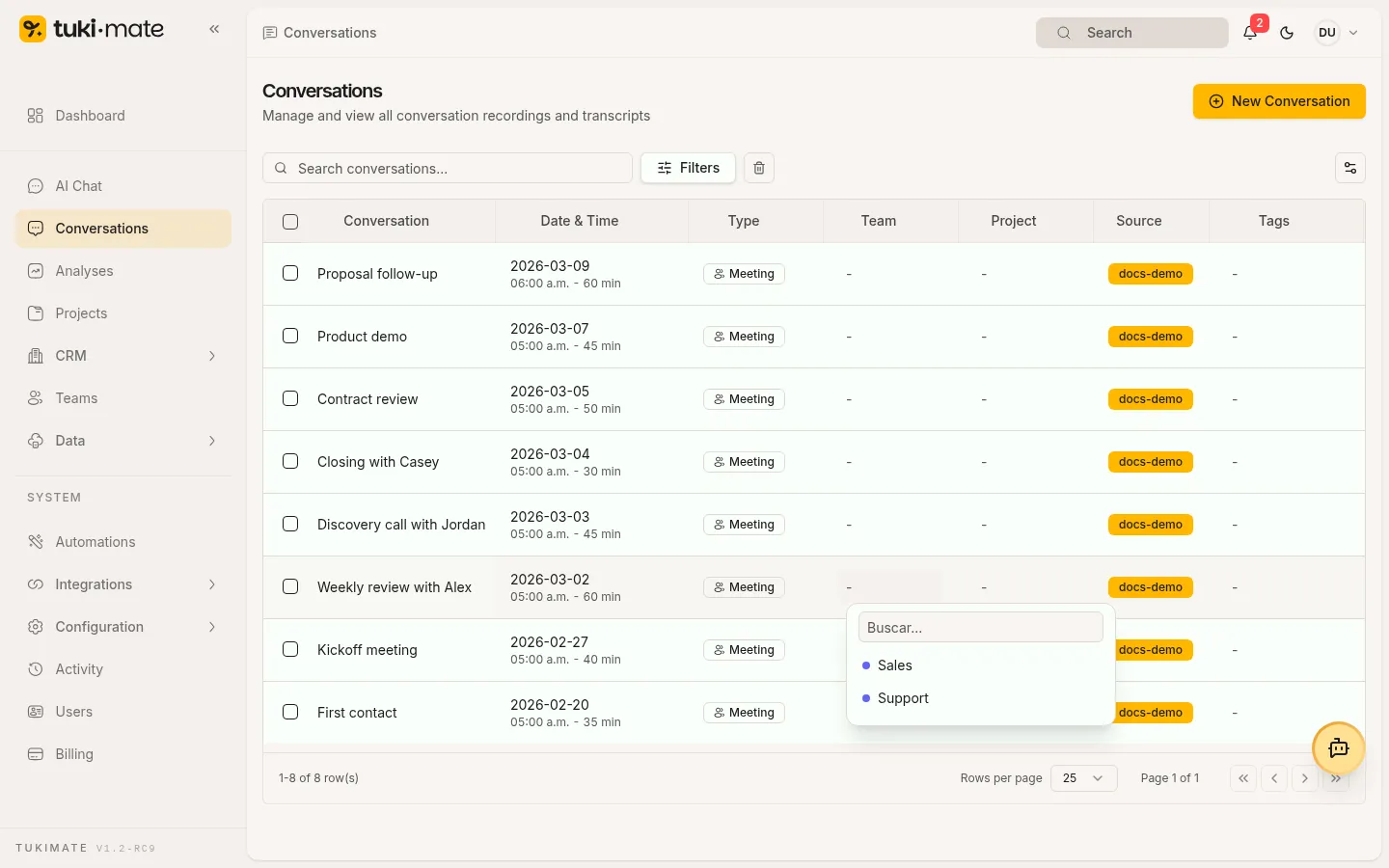
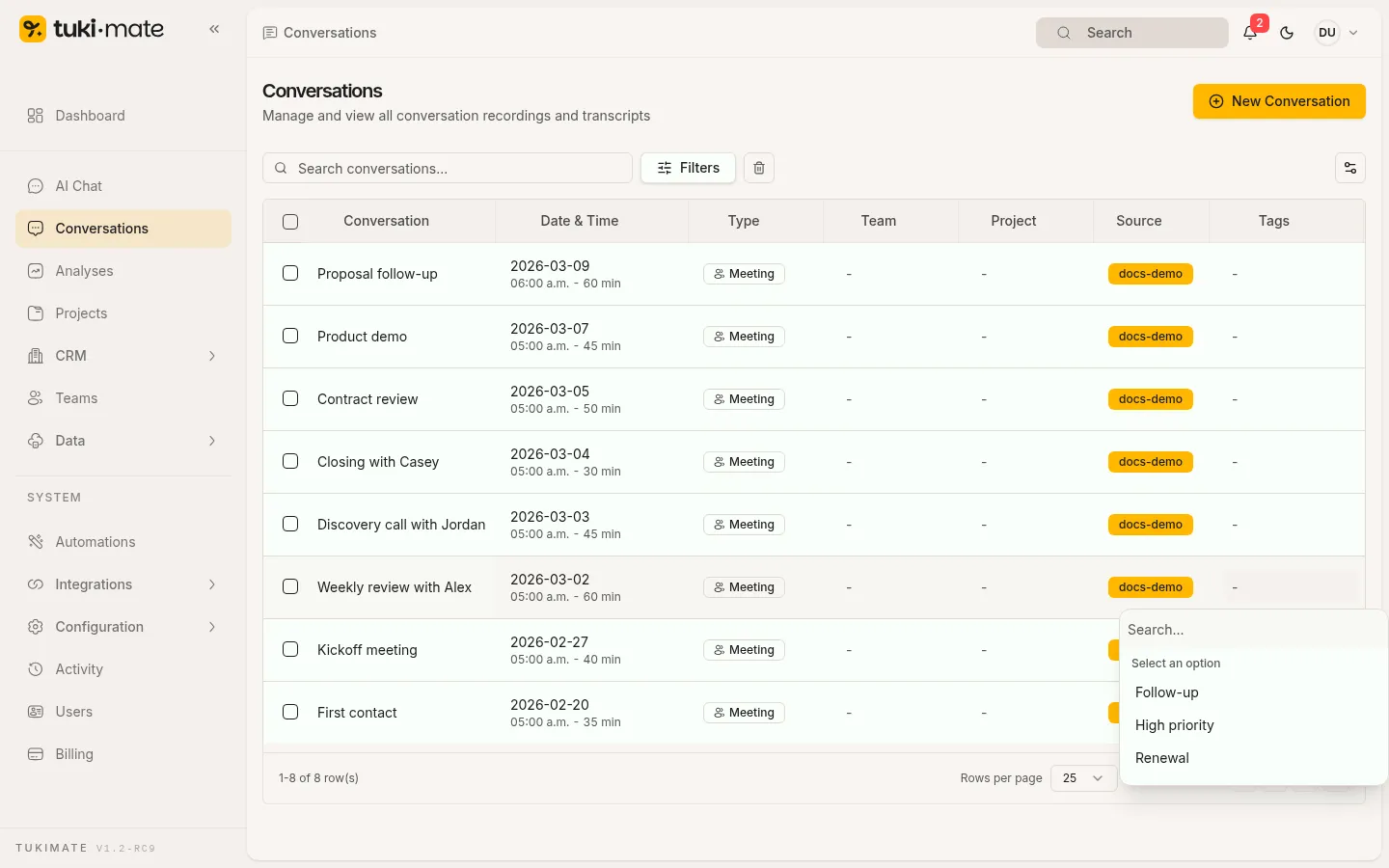
In the Conversations list, the Team, Project, and Tags columns are edited with one click.
- Click the Team or Project cell of the row you want.
- Type in Search… to filter or pick an option from the list: the change applies instantly.
- For tags, click the Tags cell and pick the ones you want. You can add several.
Edit from the quick view
- Click a row to open the quick view.
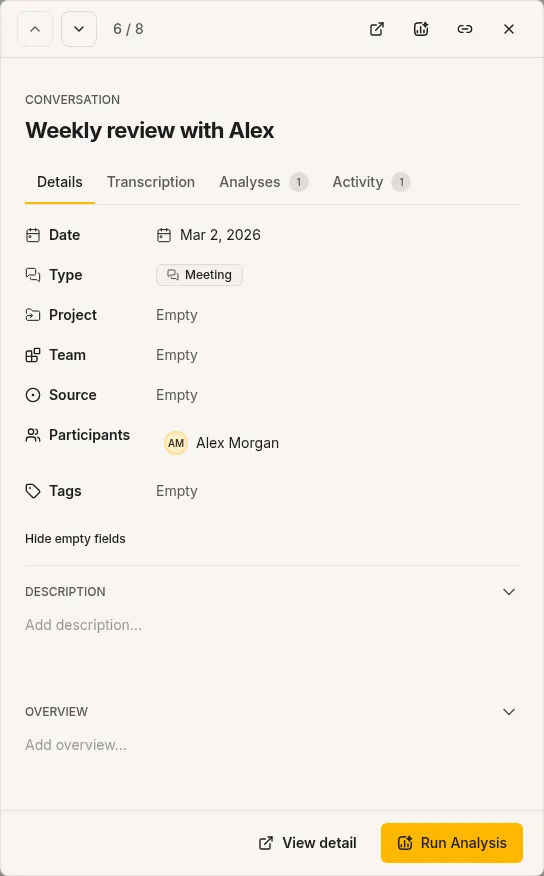
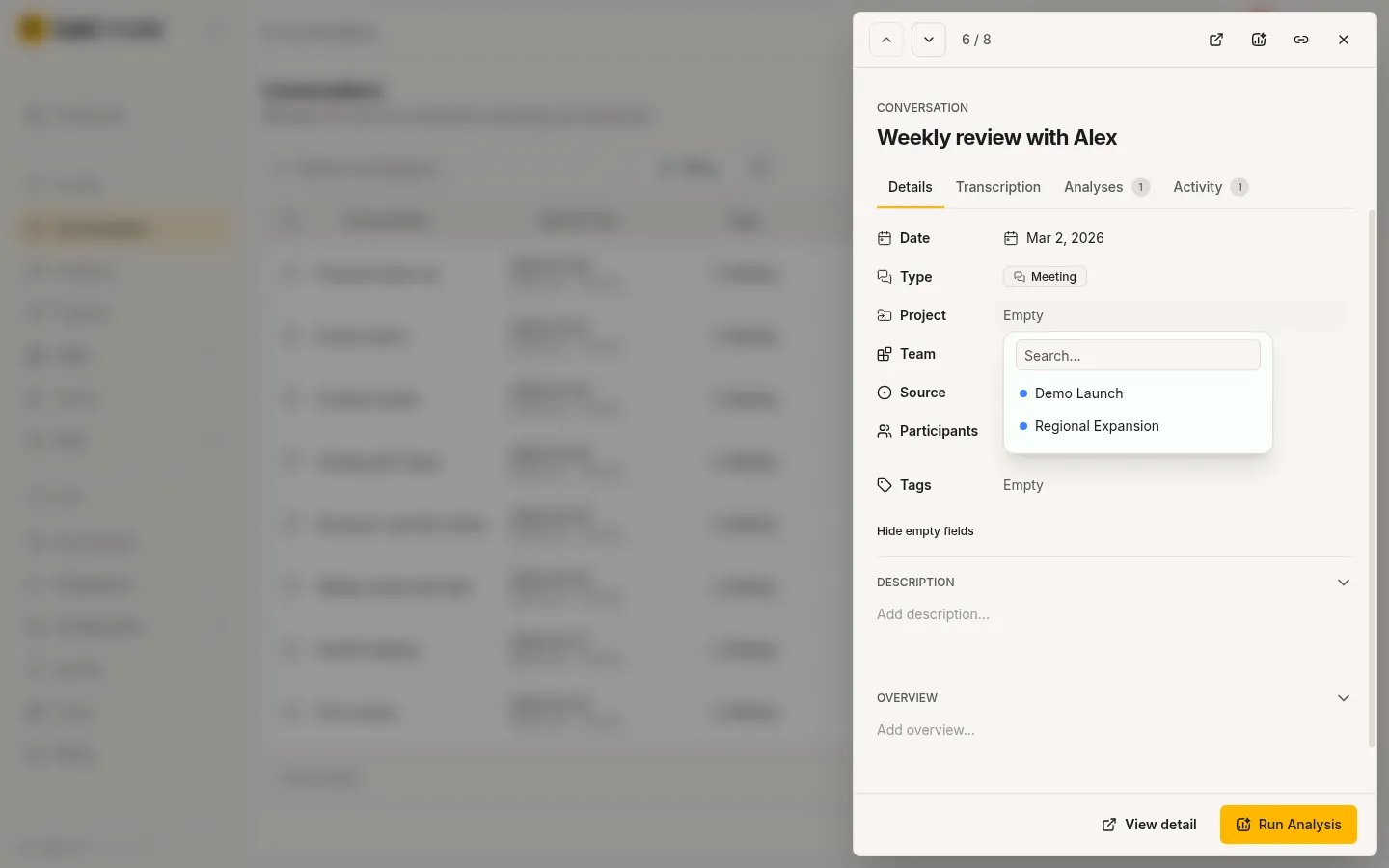
On the Details tab, Date, Type, Project, Team, Source, and Tags are edited with one click. Each opens a picker with a search box.
Change the title
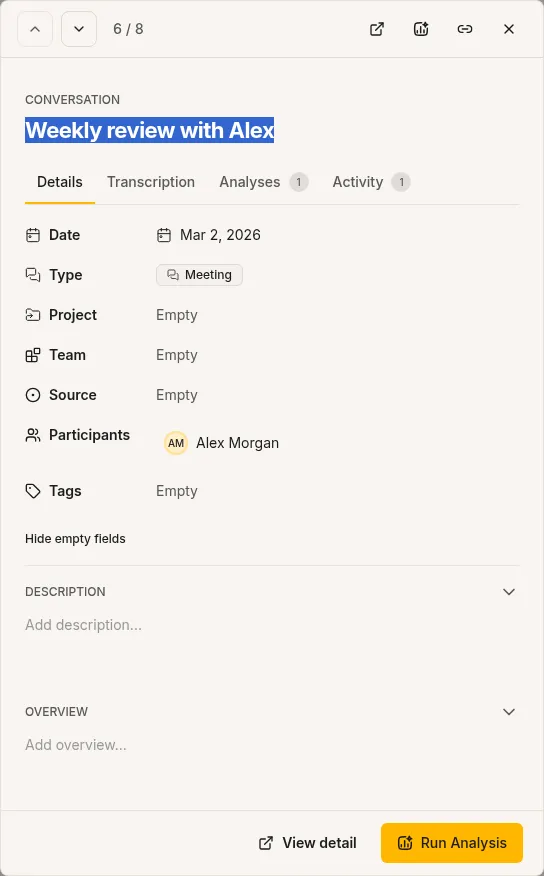
- Click the conversation title.
- Type the new title and press Enter or click outside to save it. Esc cancels.
Fill in the description and summary
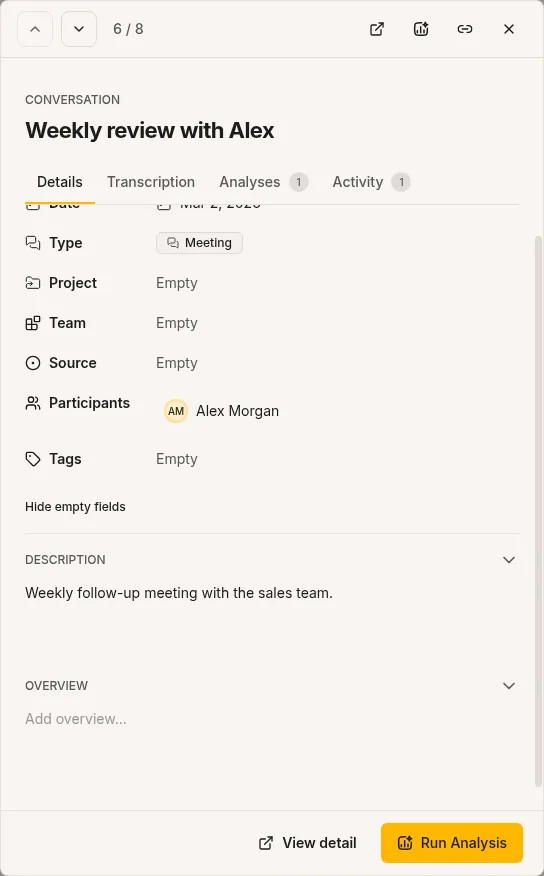
- Click Add description… or Add overview… (or the text they already have).
- Type the text and press Enter to save, or Shift + Enter for a new line. Clicking outside also saves; Esc discards what you typed.
See what changed
In the quick view, the Activity tab lists the conversation’s changes. On the full page you find them in Activity History.