

Conversation detail
Tour the full page of a conversation: data, transcript, summaries, participants, analyses, and actions.
The detail page gathers everything TukiMate knows about a conversation in one place.
Open the detail
- In Conversations, click a row to open the quick view.
- Click View detail. You can also come in from a row of Recent Conversations on the Dashboard.
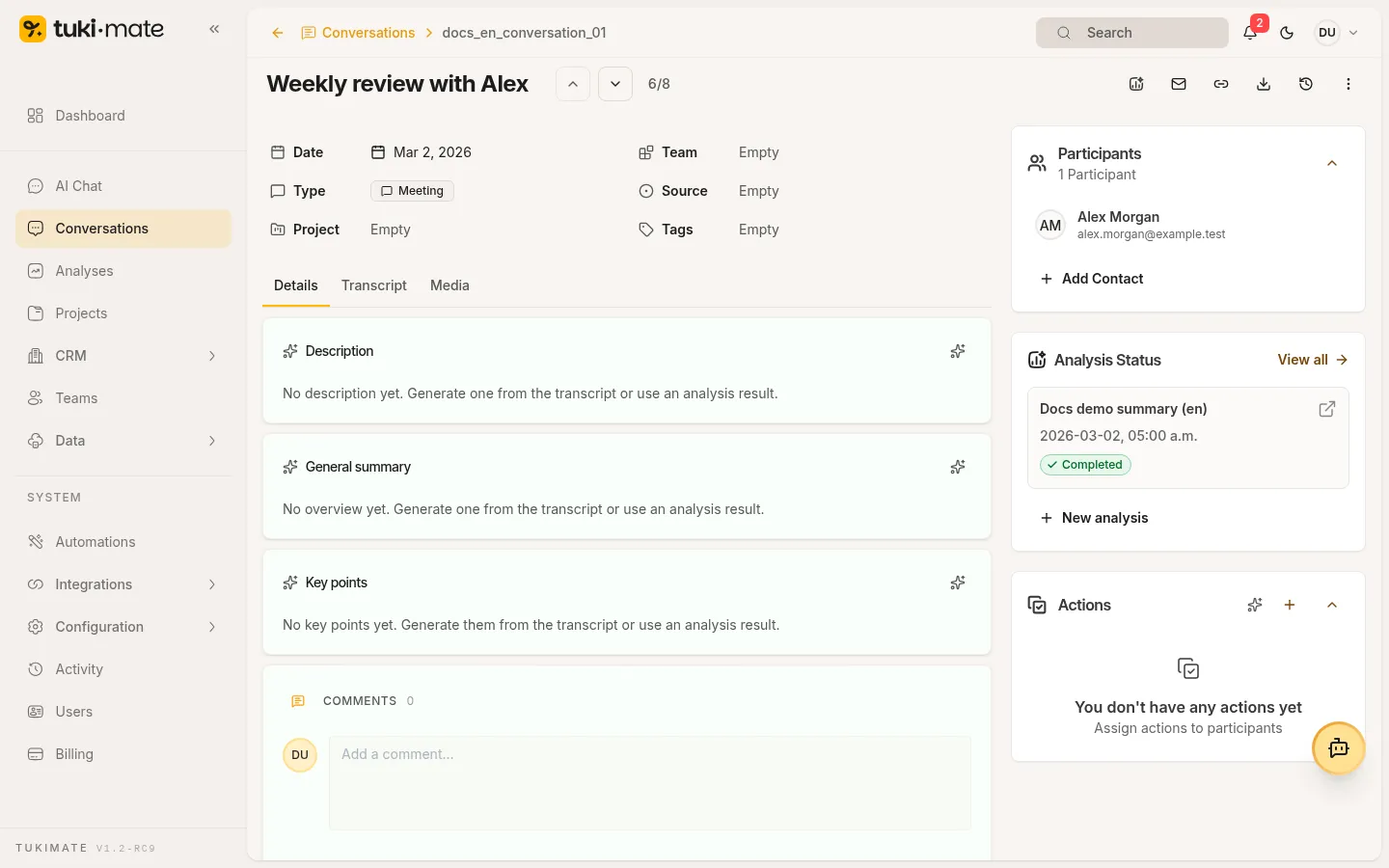
The top bar
- The conversation title is edited with one click, and the arrows next to it take you to the previous or next conversation in your list (for example, 3/3).
- Run Analysis, Send Email, Secure Share, and Export act on this conversation.
- Activity History shows the changes that were made. The Actions menu includes Delete.

The conversation data
Under the title you see Date, Type, Project, Team, Source, and Tags. They are edited in place: see Inline editing.
The tabs
- Details: Description, General summary, and Key points, plus your team’s Comments.
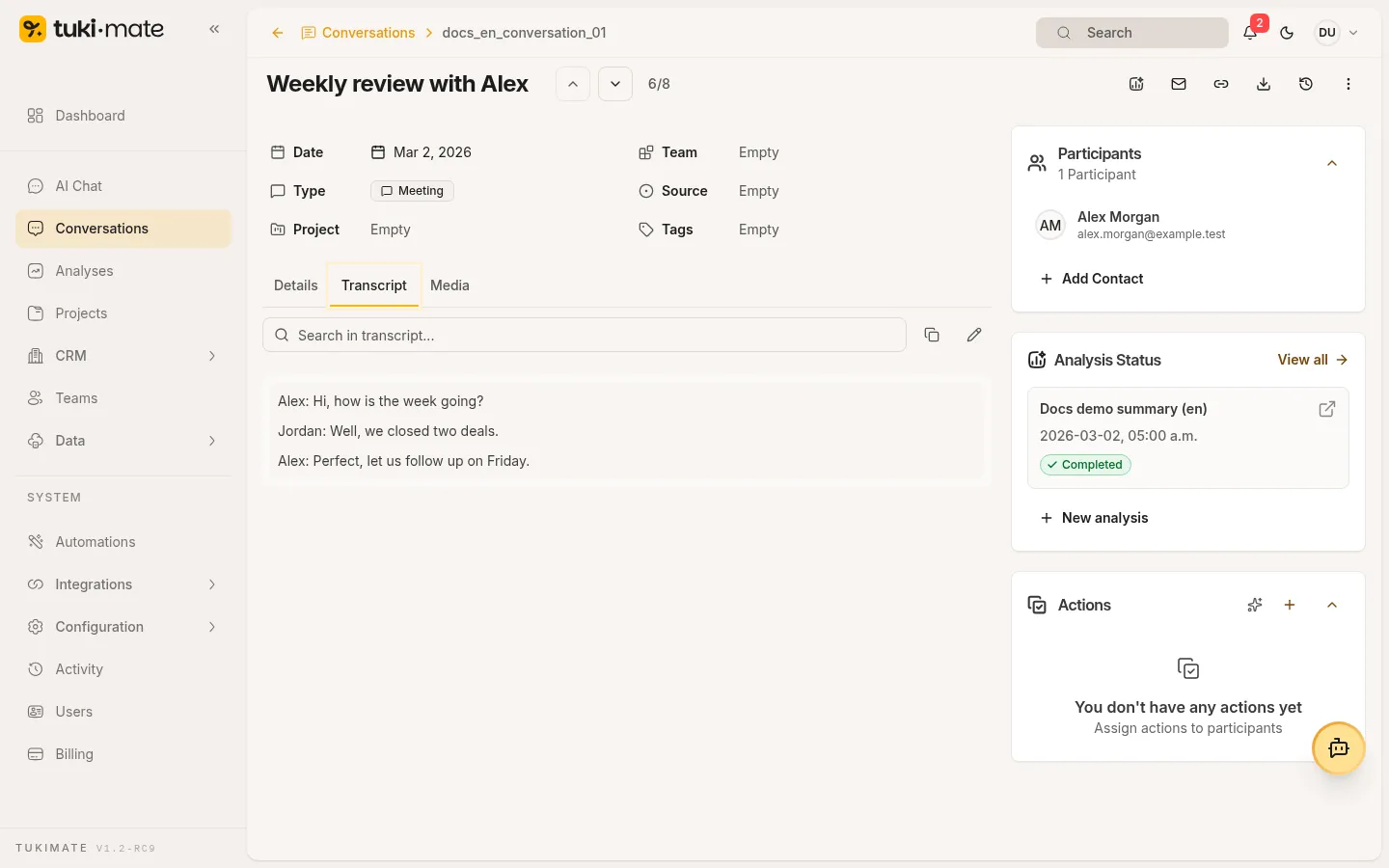
- Transcript: the full text. Use Search in transcript… to find a phrase, Copy to send it to the clipboard, or Edit to correct it.
- Media: the audio or video, when the conversation has any. Otherwise it shows No media available for this conversation.
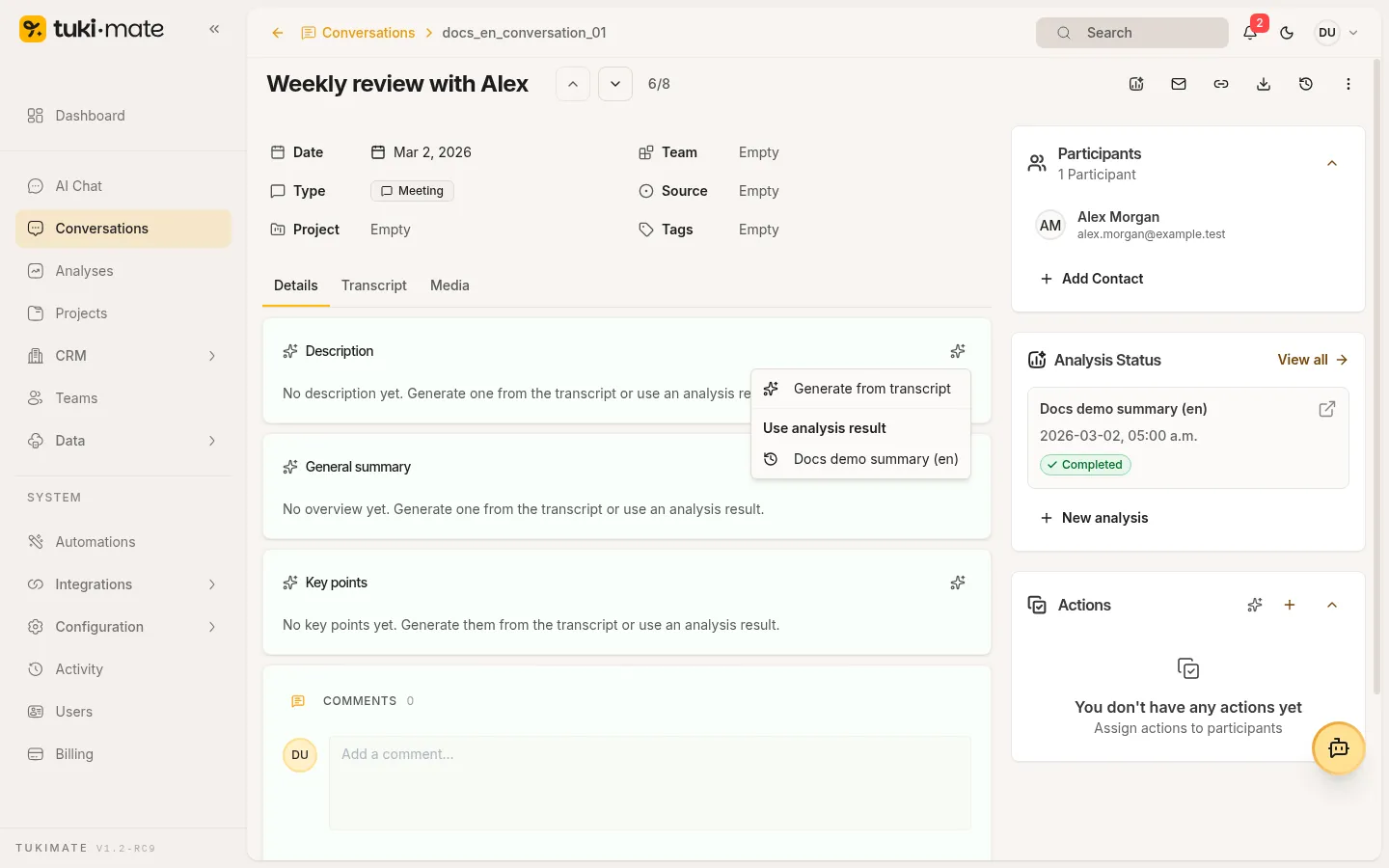
Fill in the description, summary, and key points
- On the card you want to fill in, open the Content actions menu.
- Choose Generate from transcript or, under Use analysis result, the analysis whose result you want to copy.
The right column
- Participants: the people in the conversation. Add Contact adds another one.
- Analysis Status: the analyses of this conversation with their status. New analysis starts one and View all lists them.
- Actions: the tasks that come out of the conversation. Add action creates one and assigns it to a participant.
Next steps
Inline editing
Change team, project, tags, title, and descriptions straight from the list and the quick view.
Run analysis
Launch batch analyses, pick modes and configs, and track jobs.
Analysis results
Open a finished analysis, review its summary, topics and entities, then export it or share it securely.