

New conversation
Add a conversation by pasting a transcript, uploading or recording audio, or sending a bot to a meeting.
There are four ways to bring a conversation into TukiMate. They all start in the same wizard and end with a conversation ready to analyze.
Open the wizard
- In Conversations, click New Conversation.
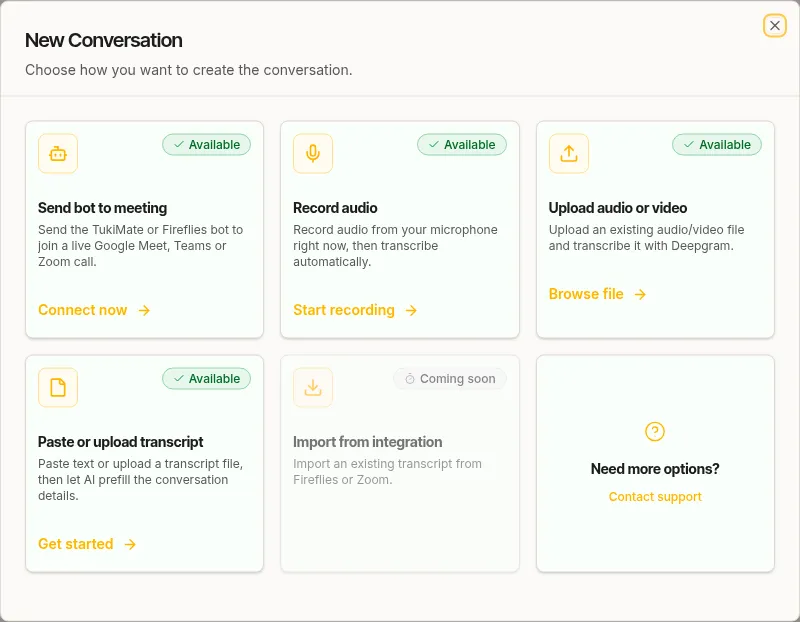
- Pick a method: Send bot to meeting, Record audio, Upload audio or video, or Paste or upload transcript. Import from integration shows as Coming soon.
Paste or upload a transcript
- Choose Paste or upload transcript.
- Paste the text into Transcript text, or drag in a text file (up to 2MB).
- Optional: set the Language hint; leave it blank to detect it automatically.
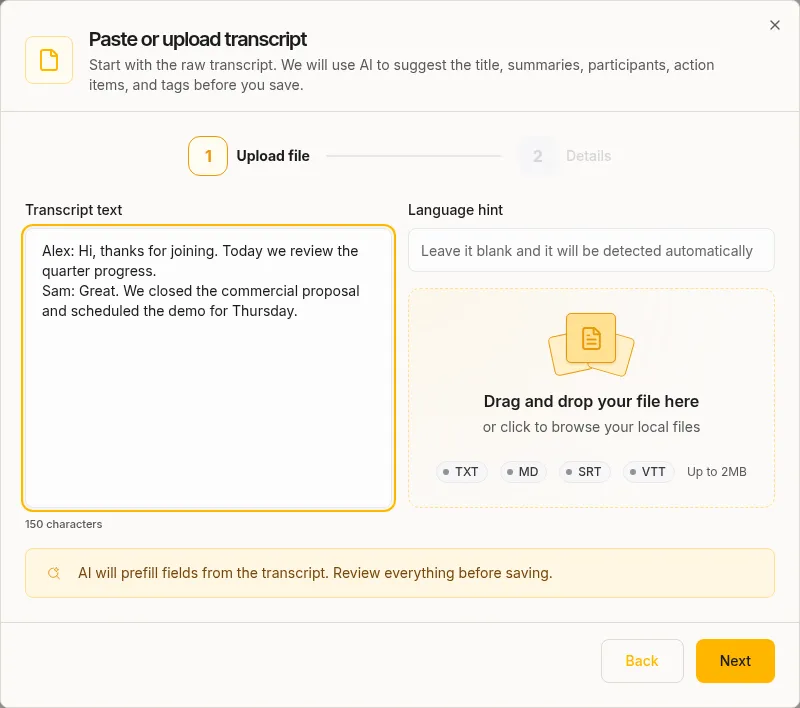
- Click Next. The AI analyzes the transcript and suggests a title, participants, and tags.
- Review the data: Conversation title, Project, Team, Participants, and Tags.
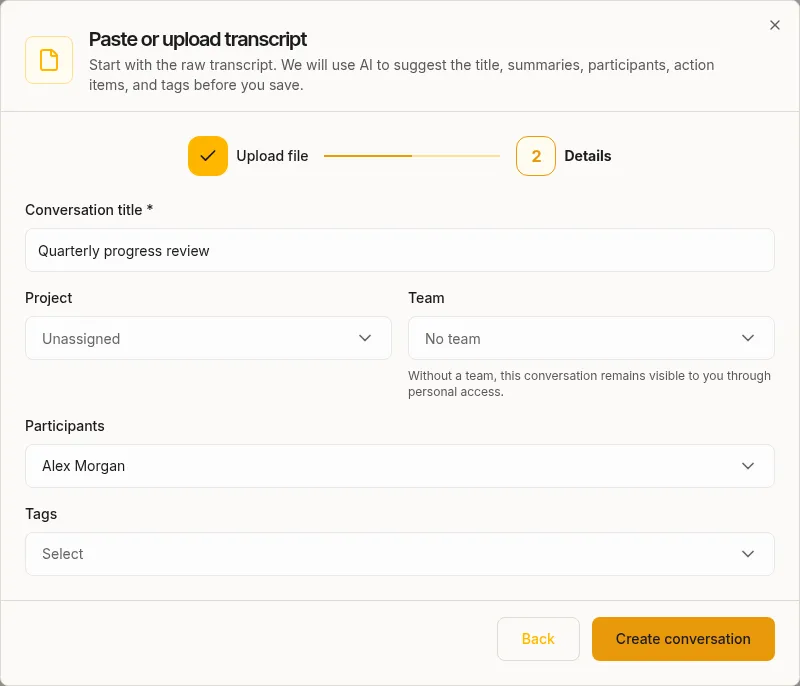
- Click Create conversation.
Upload audio or video
- Choose Upload audio or video.
- Drag your recording into the box or click to browse your files.
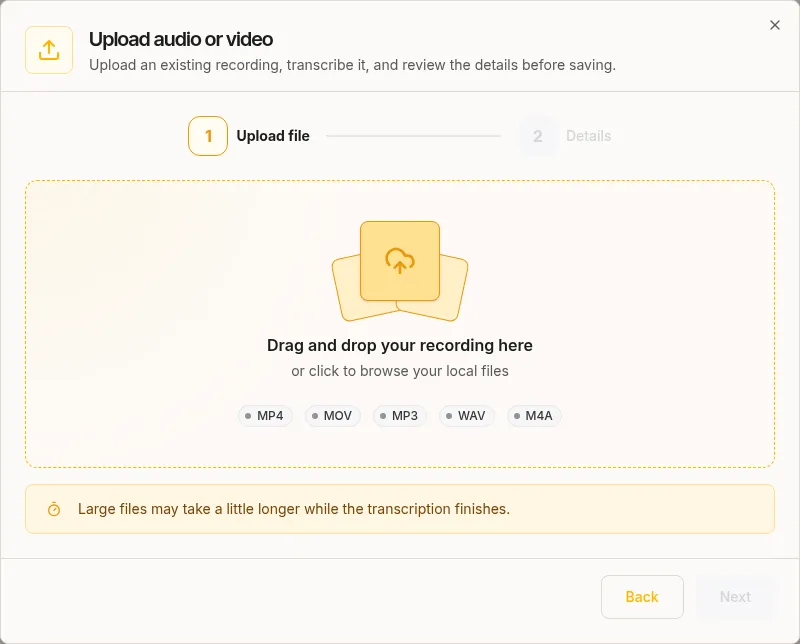
- Wait for the upload and transcription to finish, then continue with the details review as in the previous method.
Record audio
- Choose Record audio and allow microphone access when the browser asks.
- Click Start recording and, when you finish, Stop.
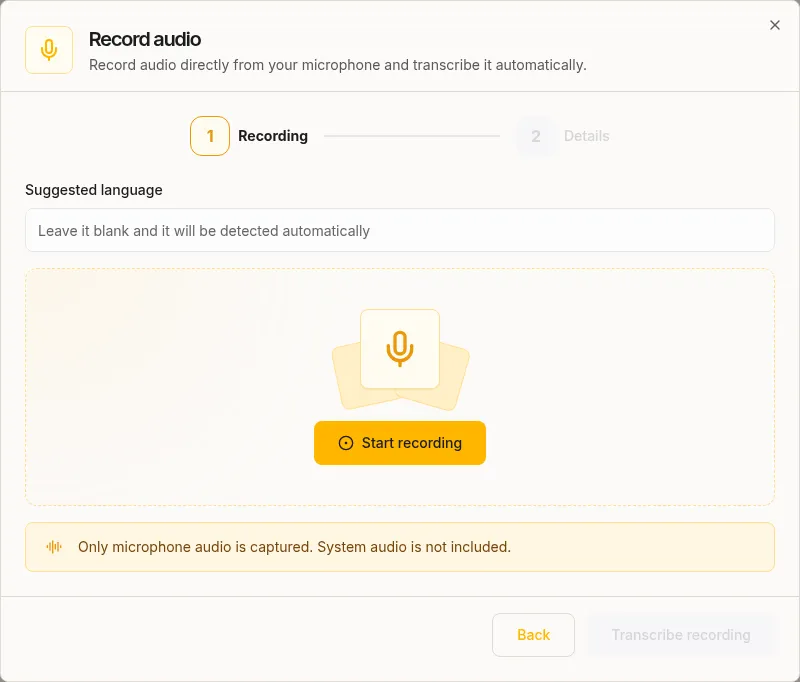
- Listen to the recording. Record again starts over; Transcribe recording moves on to the details review.
Send a bot to a meeting
- Choose Send bot to meeting.
- If you have more than one provider connected, pick one under Provider.
- Paste the live meeting link into Meeting URL (Google Meet, Teams, or Zoom).
- Optional: fill in Meeting title, Language hint, and Bot display name.
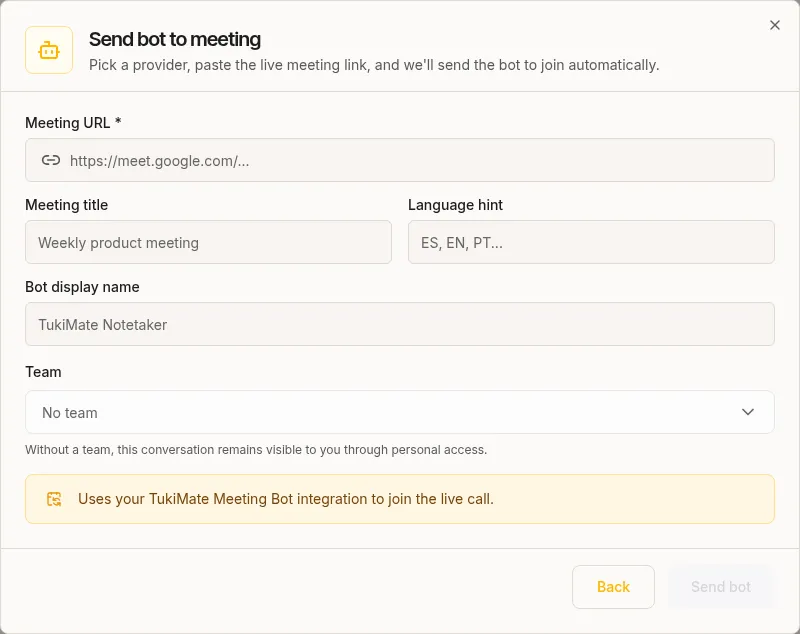
- Click Send bot. You see the Bot sent successfully confirmation.