

Applications
Explore the integration catalog, connect an application, and check its status.
The Applications screen gathers the integrations that bring conversations from other tools into TukiMate: messaging, meetings, email, and more.
See the catalog
- In the sidebar, open Integrations and go to Applications.
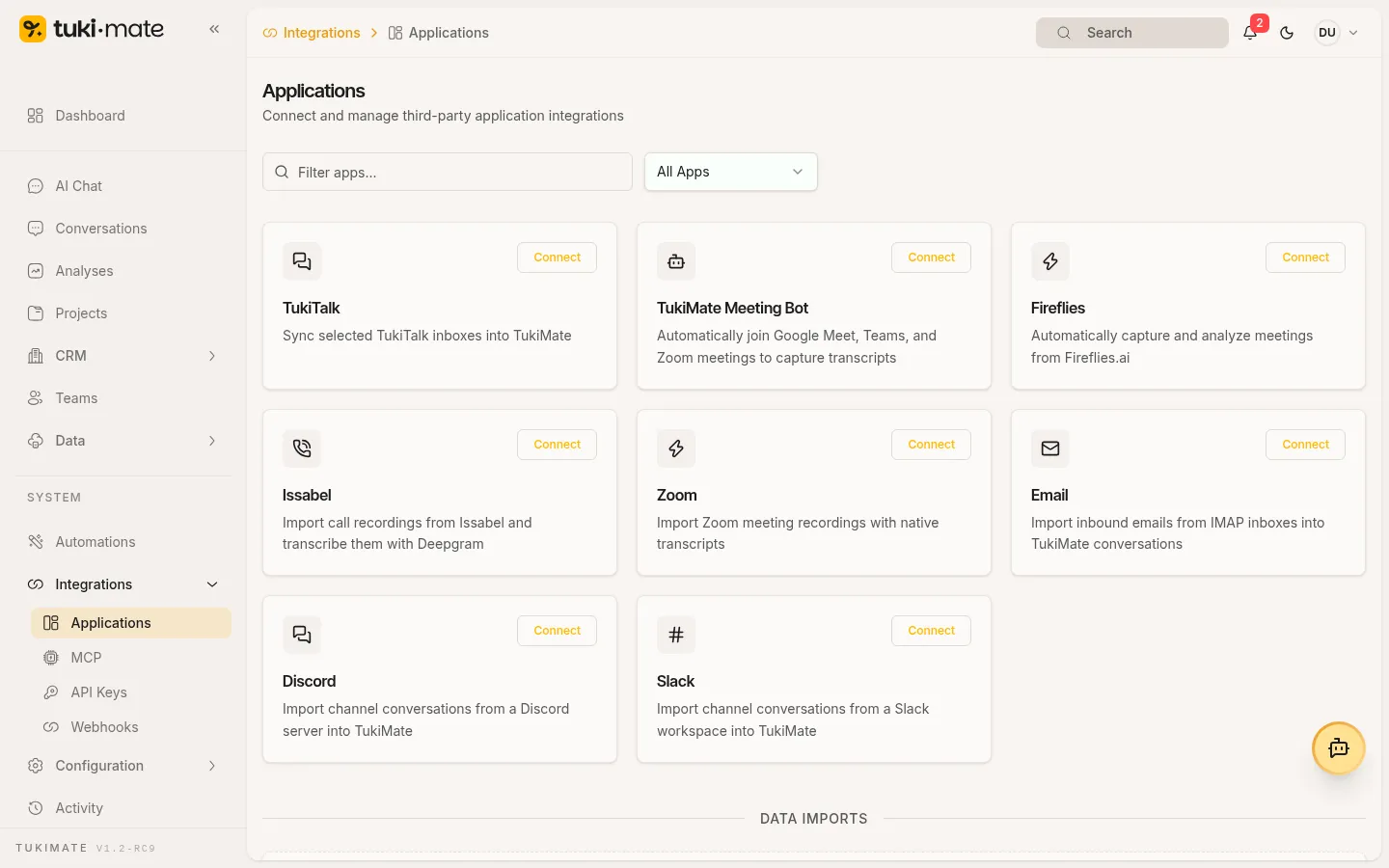
You see one card per application: TukiTalk, TukiMate Meeting Bot, Fireflies, Issabel, Zoom, Email, Discord, and Slack. On applications that are already connected, the card button shows Connected (or Paused if the integration is paused).
Connect an application
- On the application’s card, click Connect. If it is already connected, the same button takes you to its settings.
- Fill in that application’s settings and save them. The steps for each one are in its guide.
Once connected, the card shows how often it syncs and the Last sync; if the last sync failed, the error appears on the same card.
Import data from files
At the bottom of the screen, the Data Imports card lets you load contacts, clients, and opportunities from CSV or Excel with Import Contacts, Import Clients, and Import Opportunities.
Next steps
TukiTalk
Sync TukiTalk inboxes with TukiMate to import their conversations automatically.
Import incoming emails as conversations by adding an IMAP connector.
Meeting Bot
Adjust how the TukiMate bot joins your Meet, Teams, and Zoom meetings and send it to a live call.
Import and export
Load contacts from a CSV or Excel file, check the preview before importing, and export your filtered list.
API keys
Generate keys so other systems can query your TukiMate data, and check their status.
Webhooks
Get real-time notices in another system when something happens in TukiMate, such as a finished analysis.
MCP
Connect an external AI assistant to your TukiMate data and choose which tools it can use.