

Import and export
Load contacts from a CSV or Excel file, check the preview before importing, and export your filtered list.
You can bring contacts in from another system with a CSV or Excel file, and take your current list out as a CSV whenever you need it.
Import contacts
- In the sidebar, open Integrations and go to Applications.
- In the Data Imports card, click Import Contacts.
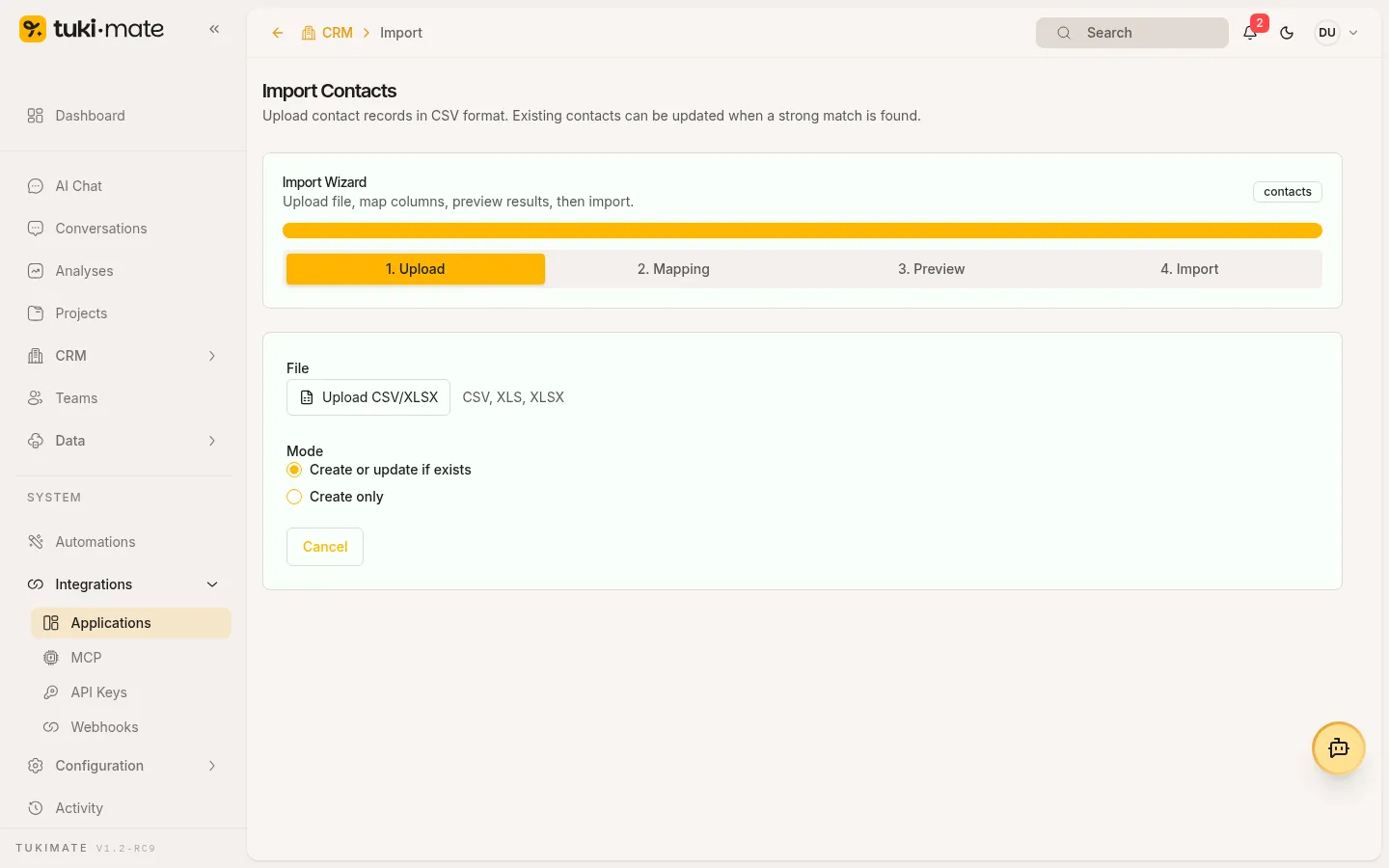
- Click Upload CSV/XLSX and choose your file (CSV, XLS, or XLSX).
- Pick the Mode: Create or update if exists updates contacts you already have when there is a clear match; Create only never changes existing ones.
- If your Excel file has several sheets, pick one under Select Sheet and click Next.
Map the columns
- Under Map Columns, check which TukiMate field each column of your file goes to. Columns with known names (for example
first_name,email, orphone) are filled in automatically.
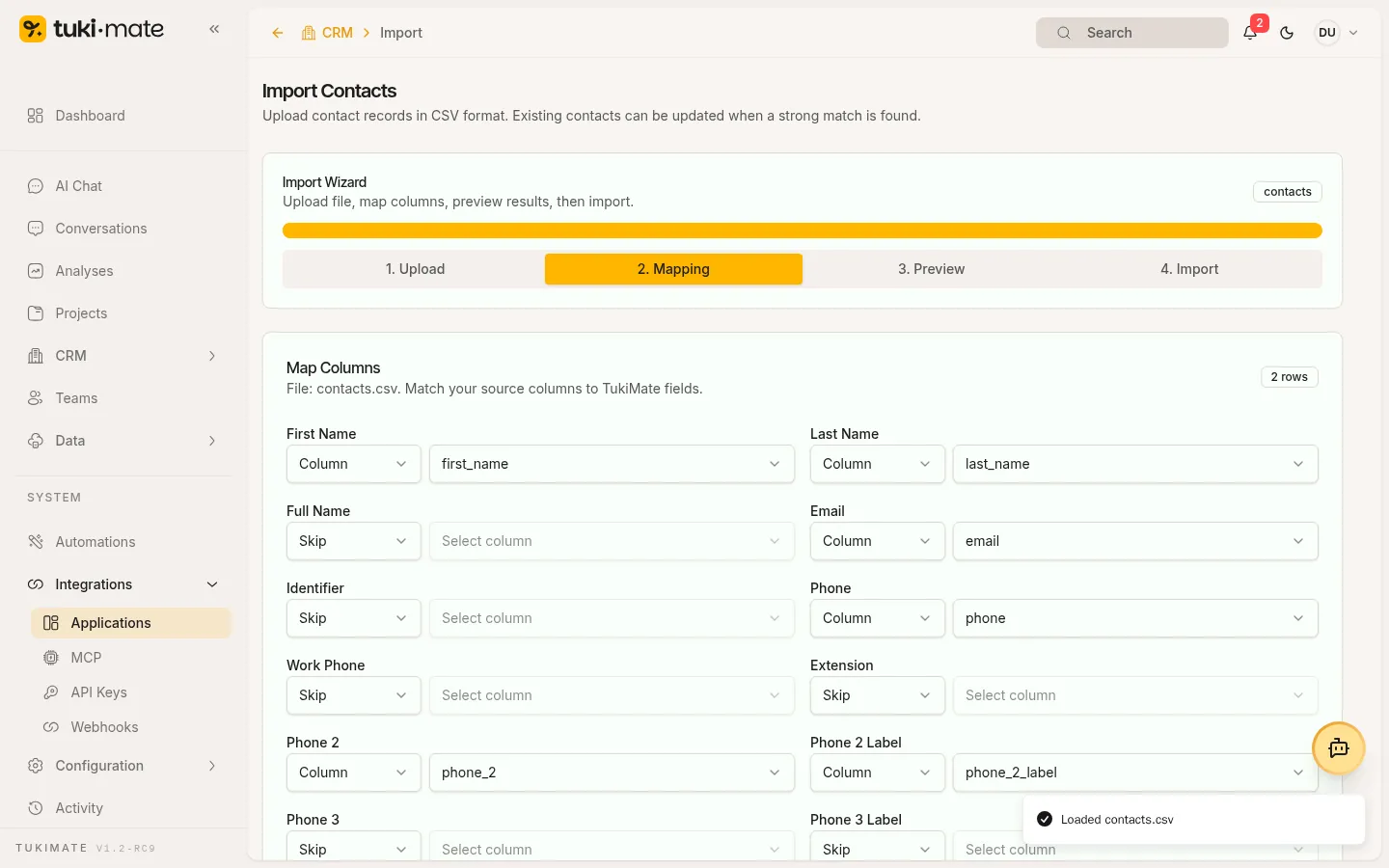
- For each field you can choose Column (take the value from a column), Fixed value (the same value for every row), or Skip.
Review and confirm
- Click Generate Preview.
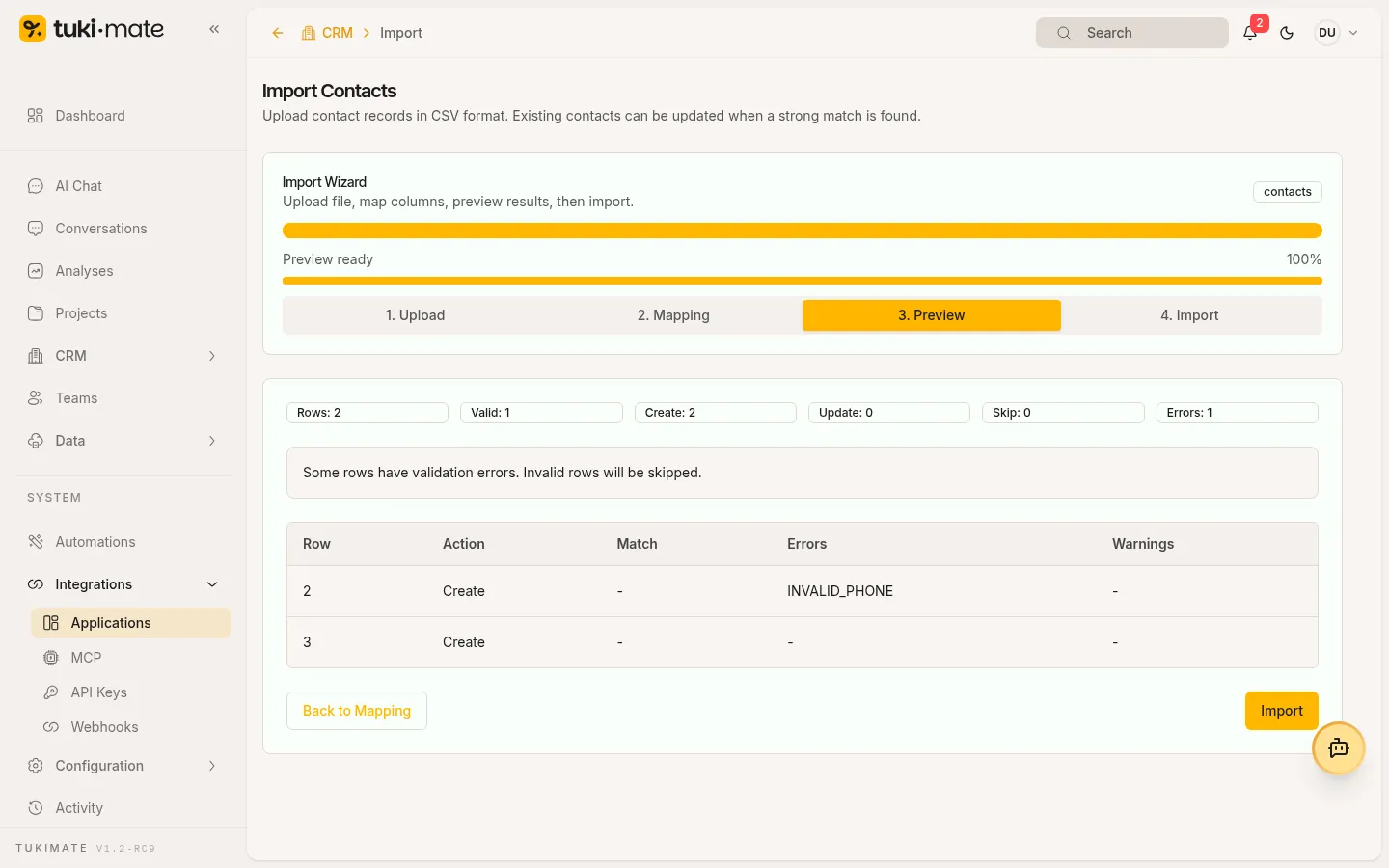
- Review the totals (Rows, Valid, Create, Update, Skip, Errors) and the table with each row’s Action, Match, Errors, and Warnings. Rows with errors are skipped.
- If something looks off, click Back to Mapping. If it looks right, click Import.
- When it finishes you see the Import summary with the contacts Created, Updated, Skipped, and Failed, and you return to the list.
Export contacts
- In Contacts, apply the filters you need.
- Click the Export button in the toolbar. A CSV file downloads with the contacts that match your search and filters.