

Contacts
Browse the list, search, open each record, manage phone numbers, and merge duplicates.
The Contacts screen gathers everyone your organization works with: clients, conversation participants, and more.
Browse the list
- Open the Contacts section from the sidebar.
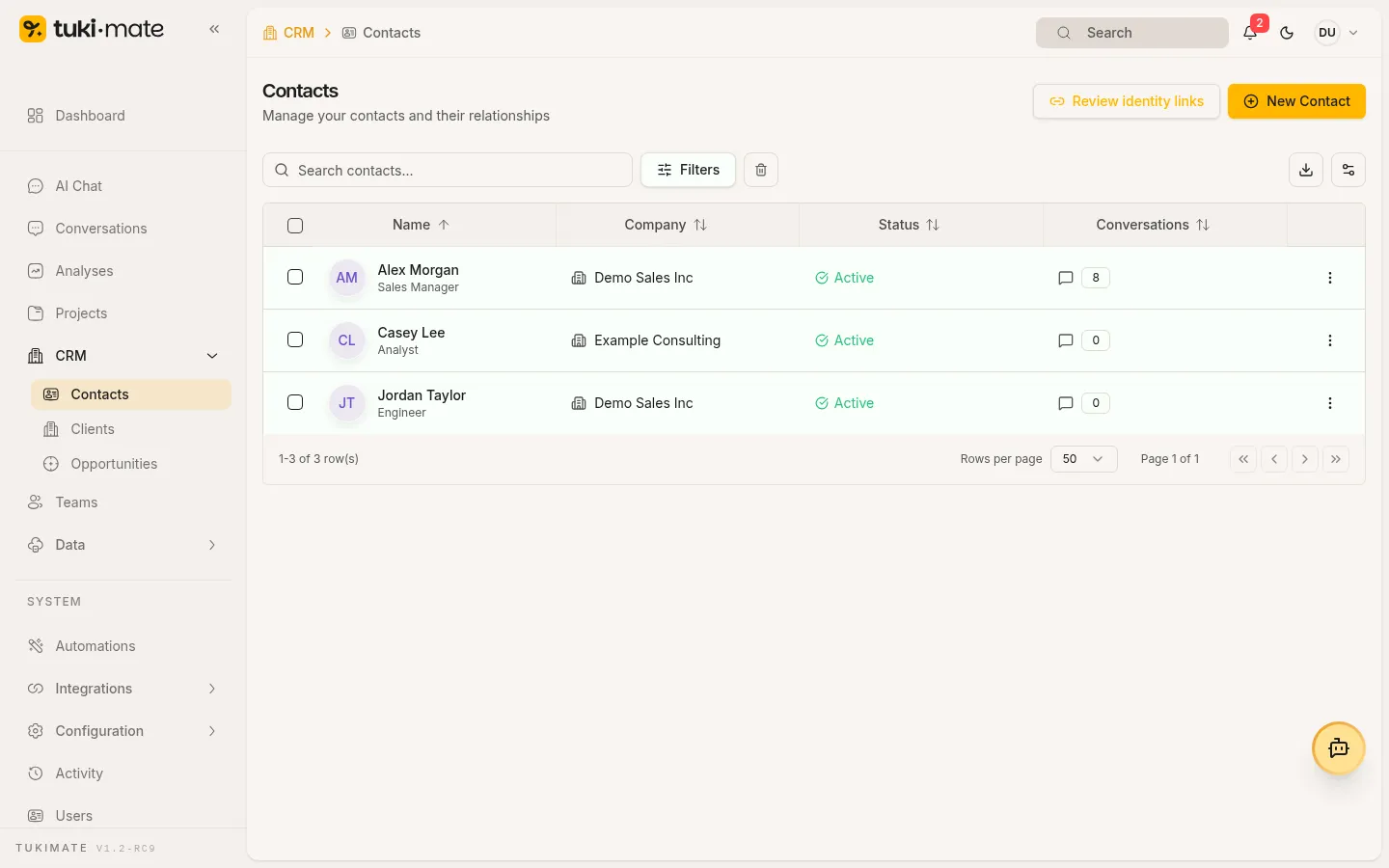
Each row shows the name, email, phone, company, and more. Use the search box to filter by name, email, or any of a contact’s phone numbers, and the Filters panel with the same criteria as in Conversations.
Open the detail
- Click a contact to open its quick view.
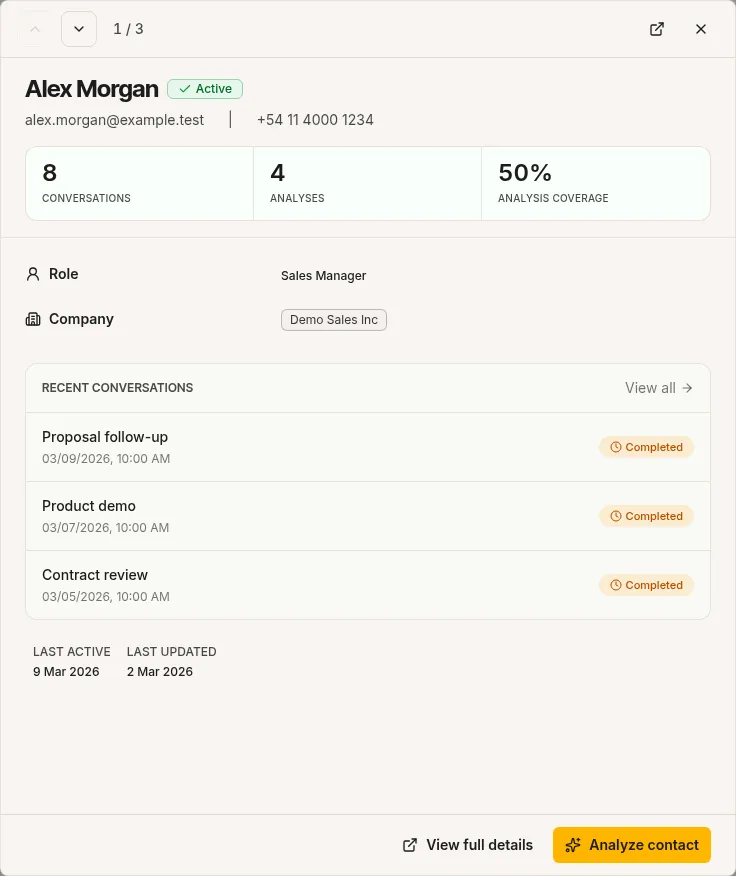
- Click the View button in the panel to open the full record.
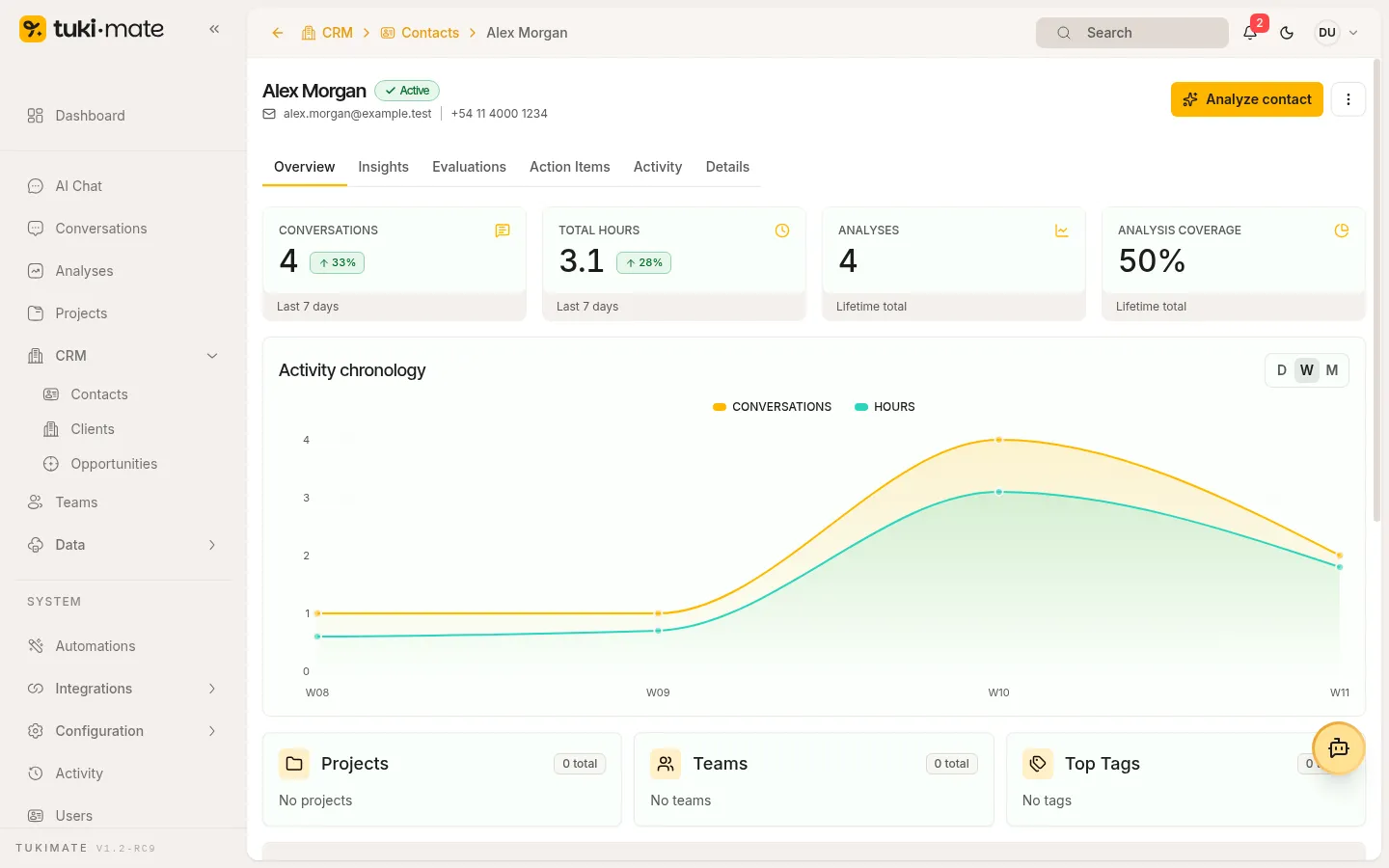
The record organizes information in tabs: Overview, Insights, Evaluations, Action Items, Activity, and Details. From there you can also open the AI chat with that person’s context.
Under Overview you see the contact’s activity at a glance: Conversations and Total hours for the last 7 days (with the change against the previous 7 days), Analyses and Analysis coverage as lifetime totals, and the Activity chronology, a chart that switches between a daily (D), weekly (W), and monthly (M) view.
Manage phone numbers
A contact can have several phone numbers.
- Open the contact’s Details tab and find the Phones section.
- Click the + button (Add phone) next to the section title.
- Fill in the Phone number, pick a Label (Mobile, Work, Home, Fax, or Other) and, if needed, the Extension.
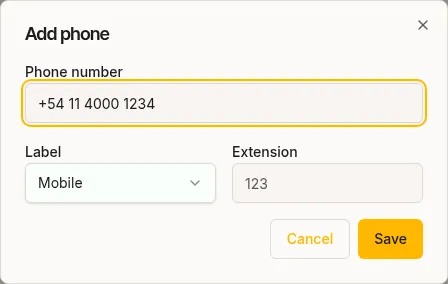
- Click Save.

Merge duplicate contacts
- In the list, select the duplicate contacts with the checkbox on each row.
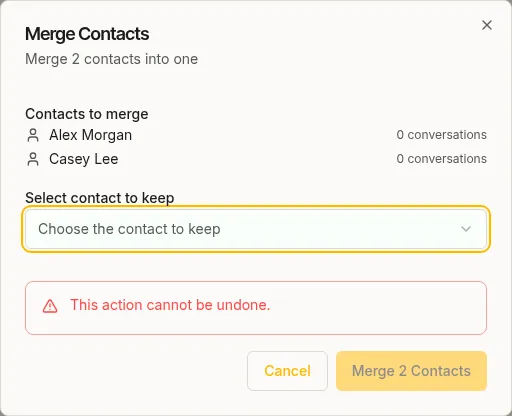
- Click Merge in the actions bar.
- Pick the contact to keep under Select contact to keep.
- Under Resolve fields, choose which value to keep for each field; empty ones on the kept contact are filled in automatically.
- Review the summary and click Merge N Contacts to confirm.