

API keys
Generate keys so other systems can query your TukiMate data, and check their status.
An API key lets another system (a CRM, a script, an automation) connect to TukiMate without using a person’s user. Each key has a role, a team scope, and an expiration date.
See the keys
- In the sidebar, open Integrations and go to API Keys.
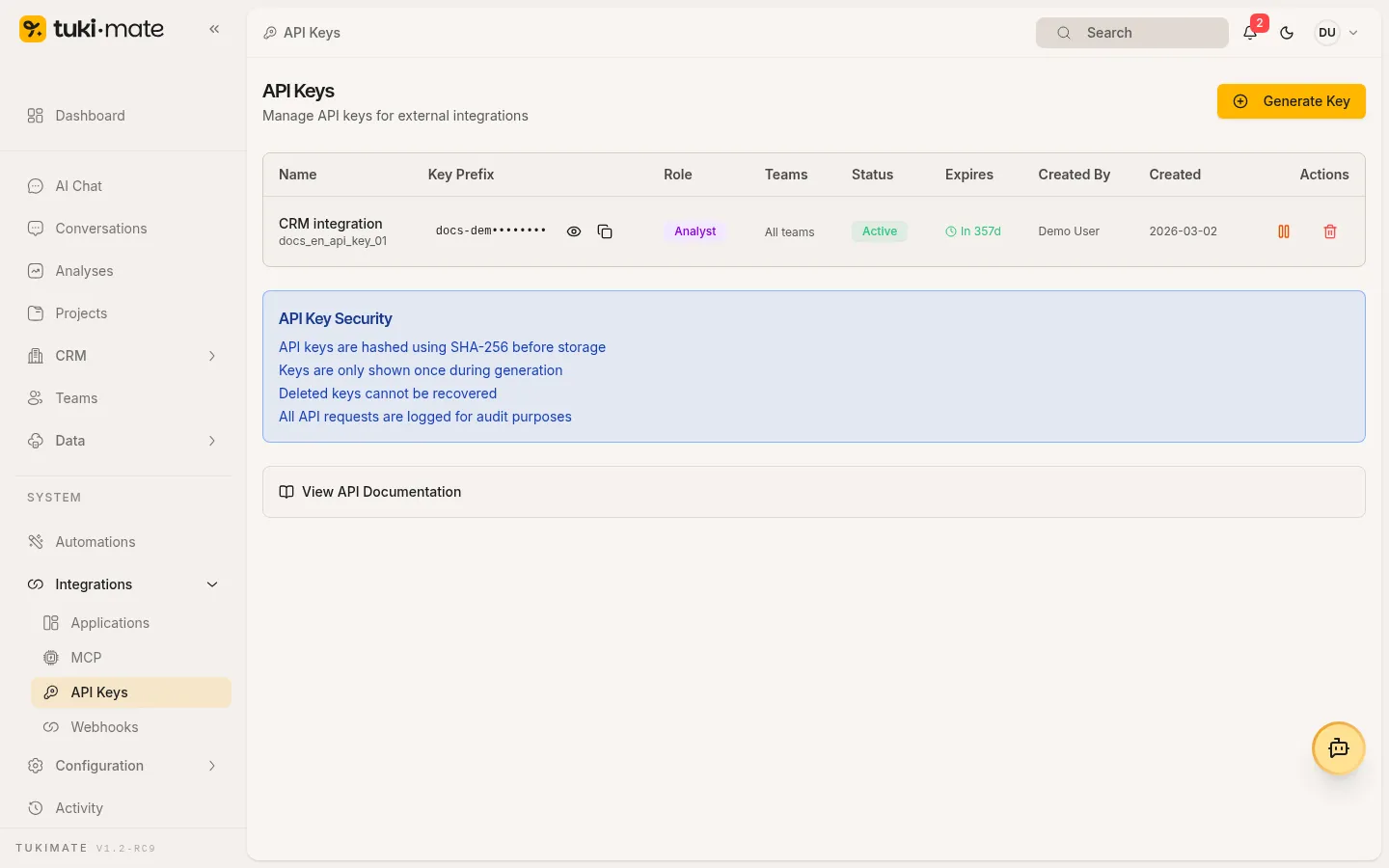
The table shows the Name, Key Prefix, Role, Teams, Status, when it Expires, who created it (Created By), and when (Created). The buttons in the Actions column let you Pause API key, Activate API key, and Delete API key.
Generate a key
- Click Generate Key.
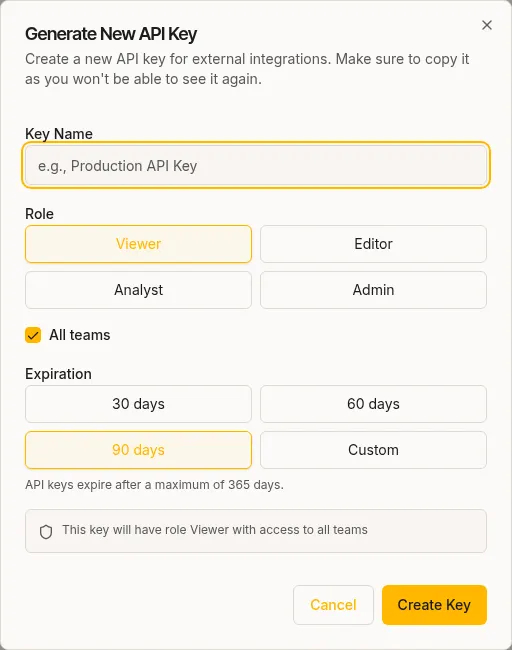
- Type the Key Name, for example “Production API Key”.
- Pick the Role. You only see roles equal to or lower than yours; the key can never do more than that role.
- Under Teams, leave All teams checked or pick at least one team. You can only assign teams you have access to.
- Pick the Expiration (30, 60, or 90 days, or Custom). Keys expire after 365 days at most.
- Click Create Key.
- Copy the Generated Key and store it somewhere safe.
Use the key
Whoever builds the integration sends the key in the x-api-key header of every request. Endpoints, parameters, and examples are in the API documentation: open it with View API Documentation, at the bottom of this screen.
Security
- Keys are stored hashed with SHA-256, never in plain text.
- All requests made with a key are logged for audit purposes.
- To stop an integration without deleting it, use Pause API key; Activate API key resumes it.