

MCP
Connect an external AI assistant to your TukiMate data and choose which tools it can use.
MCP (Model Context Protocol) is a standard that lets external AI assistants, such as claude.ai or a command-line client, query your conversations, analyses, and contacts under the same access rules as the user or key that connects.
Enable MCP
- In the sidebar, open Integrations and go to MCP.
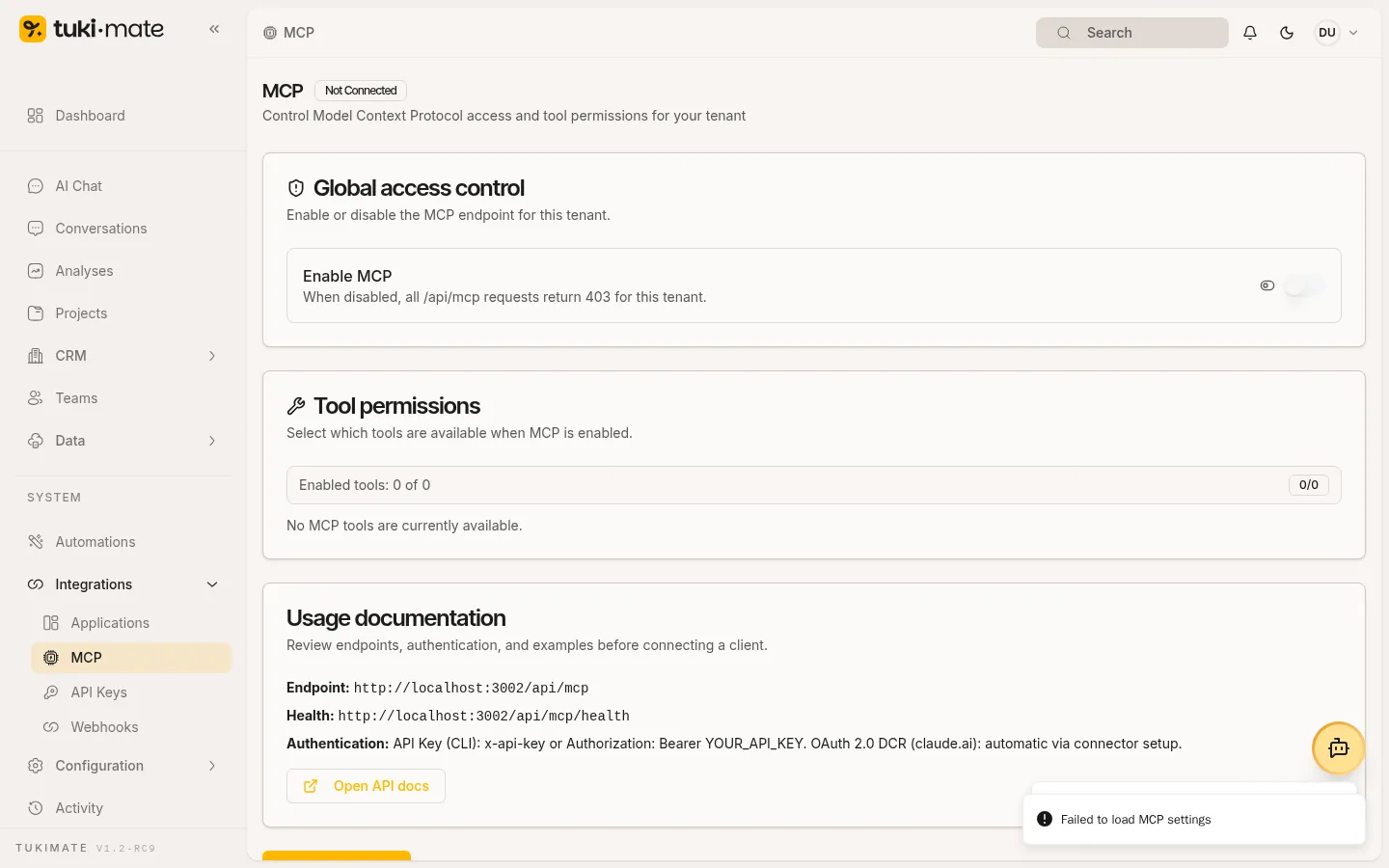
- Under Global access control, turn on Enable MCP. When it is off, all MCP requests for your organization are rejected with a 403.
- Under Tool permissions, check the tools you want to allow. The counter (Enabled tools: N of 11) shows how many are active.
- Click Save settings.
Connect a client
In the Usage documentation box on the same screen you find the Endpoint, the Health address to check that it responds, and the Authentication method.
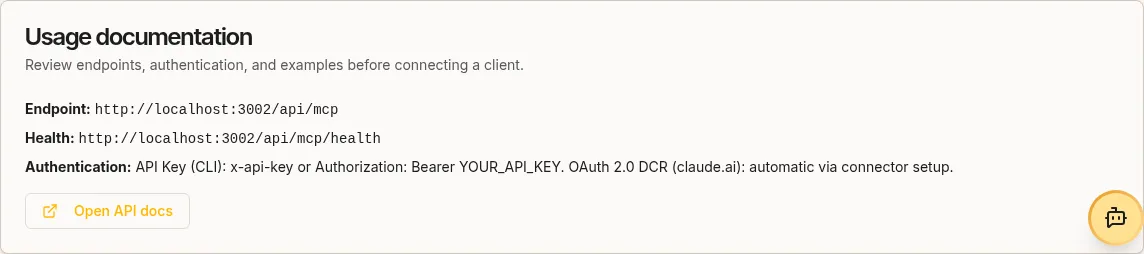
- With an API key (for example from a command line): send the key in the
x-api-keyheader or asAuthorization: Bearer YOUR_API_KEY. Generate it in API keys. - With claude.ai: OAuth 2.0 authentication is automatic when you set up the connector.
Good practices
- In list tools, use
limitandoffsetto process data in batches instead of loading everything. - Keep
includePayload,includeConversation,includeIdentifiers, andincludeNotesoff unless you need those fields: responses are smaller and faster. - Enable only the tools your use case needs.
The full endpoints, parameters, and examples are in the API documentation: open it with Open API docs.