

Import incoming emails as conversations by adding an IMAP connector.
The Email integration turns the emails that reach a mailbox into TukiMate conversations. It supports IMAP inboxes, forwarded-email webhooks, Gmail API (OAuth), and Microsoft Graph (OAuth); this guide walks through the IMAP connector.
Add a connector
- In Integrations → Applications, click Connect on the Email card.
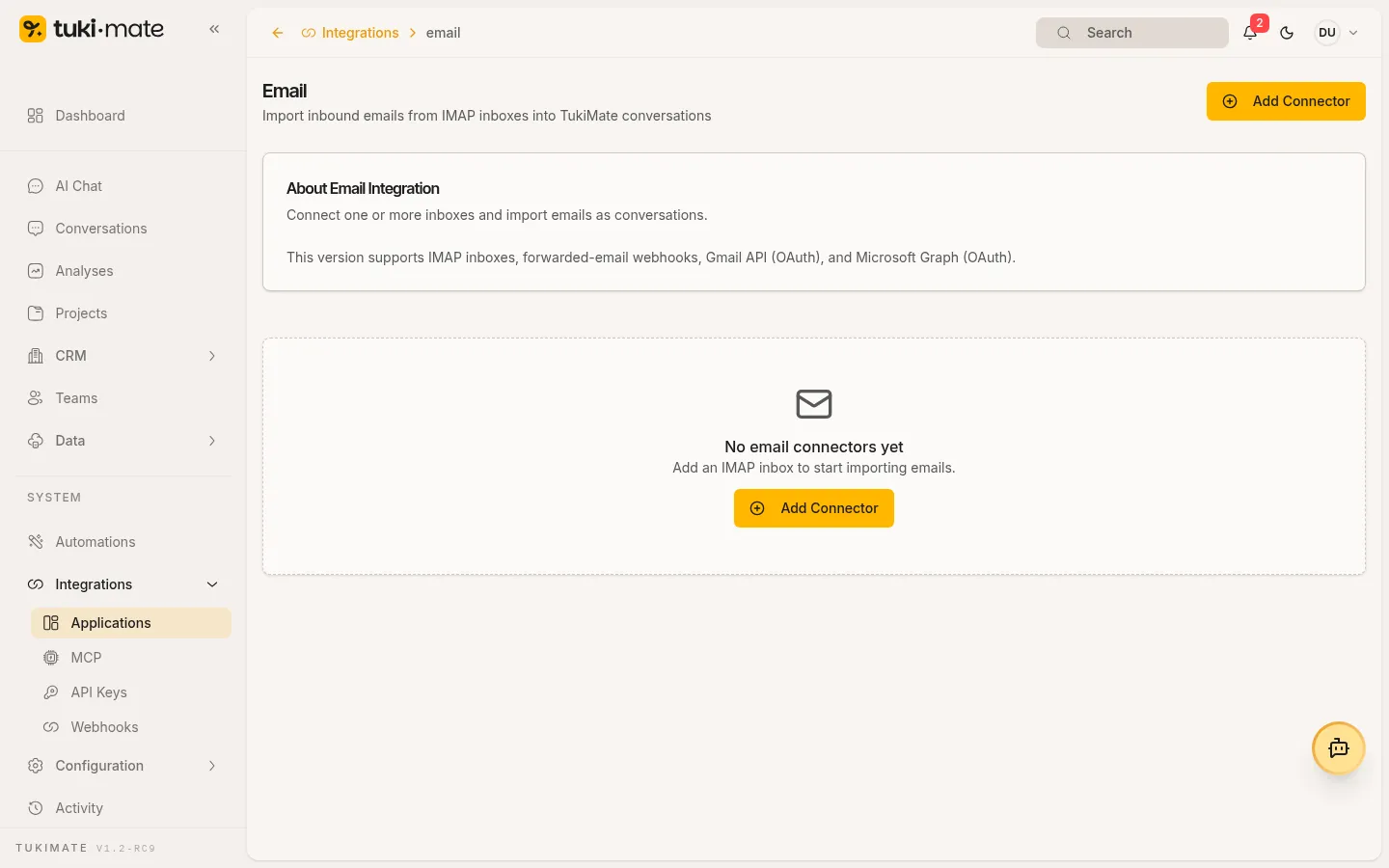
- Click Add Connector.
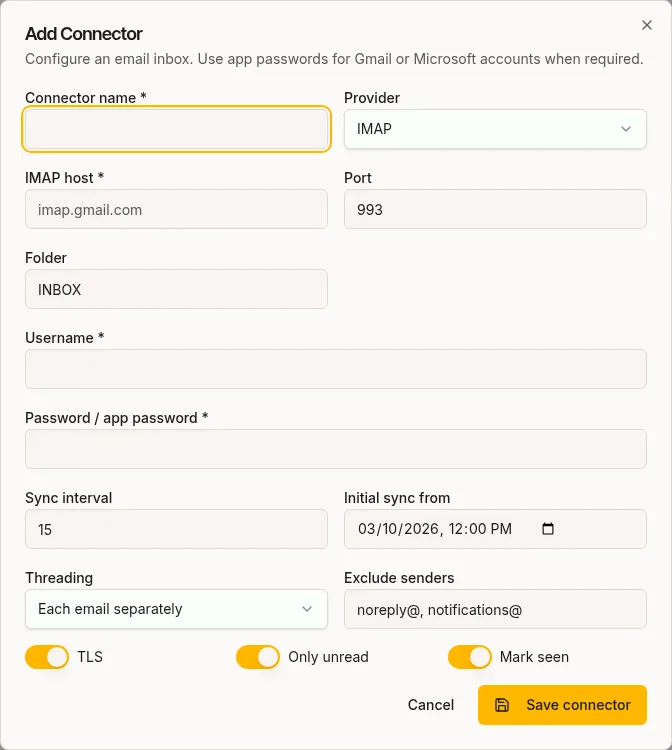
- Type a Connector name and leave Provider on IMAP.
- Fill in IMAP host, Port (993 by default), Folder (INBOX by default), Username, and Password / app password.
- Set the Sync interval (15 minutes by default) and the Initial sync from date.
- Choose how emails are grouped under Threading: Each email separately or Group email threads.
- Optional: under Exclude senders, list the addresses or prefixes to ignore, for example
noreply@. - Review the TLS and Only unread switches.
- Click Save connector.