

TukiTalk
Sync TukiTalk inboxes with TukiMate to import their conversations automatically.
The TukiTalk integration imports, on a schedule, the conversations from the inboxes you choose and turns them into TukiMate conversations.
Enter the credentials
- In Integrations → Applications, click Connect on the TukiTalk card.
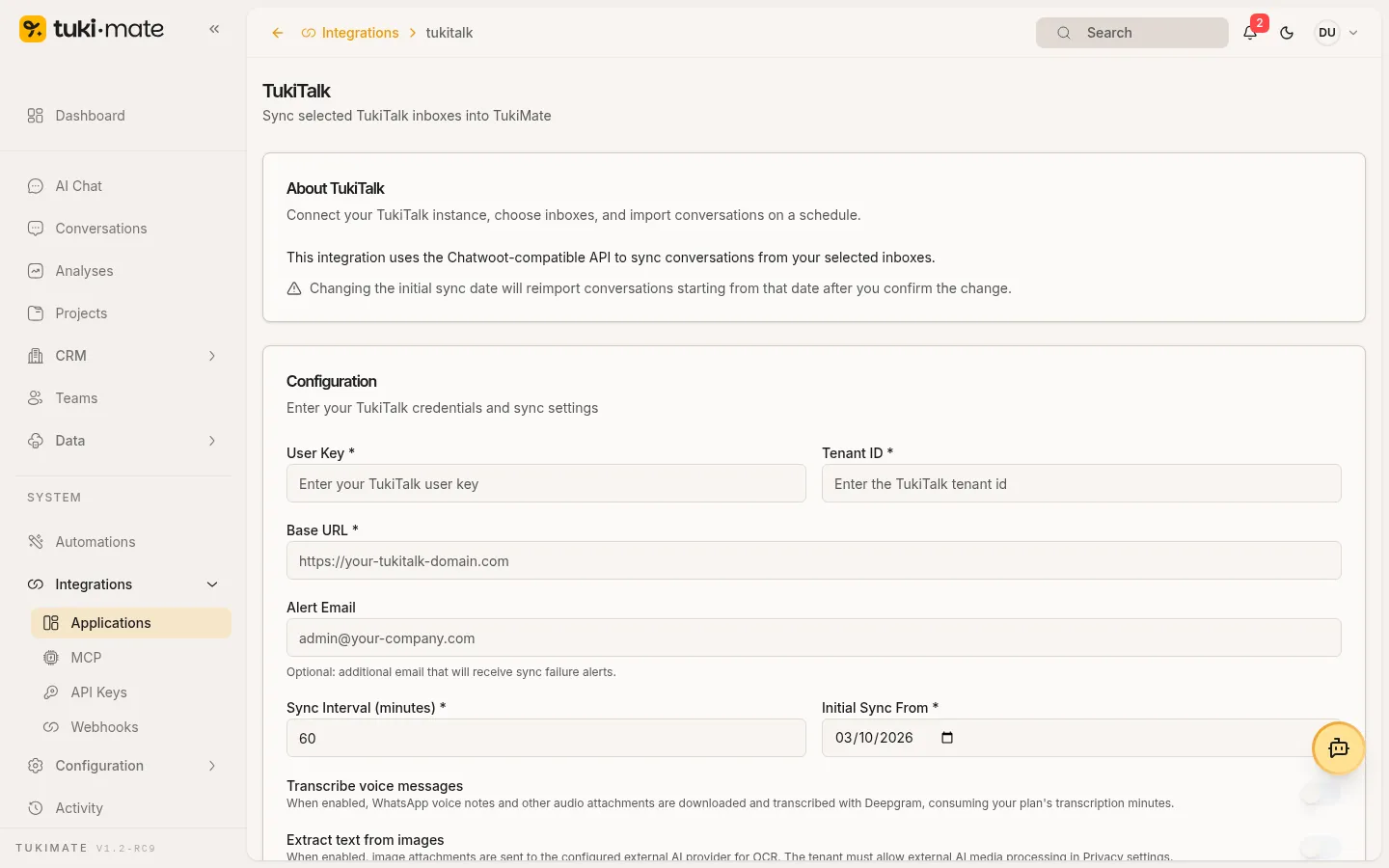
- Fill in User Key, Tenant ID, and Base URL (the address of your TukiTalk instance).
- Optional: under Alert Email, add an extra email that will receive notices when a sync fails.
- Set the Sync Interval (minutes) and the Initial Sync From date: it is the point from which history is imported.
- Optional: turn on Transcribe voice messages and Extract text from images (see the notes below).
- Click Save Configuration.
Choose the inboxes
- After the credentials are saved, Inbox Selection loads the available inboxes. Check the ones you want to sync.
- Optional: turn on Include group chats.
- Save the configuration. Sync activates once at least one inbox is selected.
Sync and review
- Click Sync now to pull new conversations without waiting for the schedule.
- Force full sync goes through the whole history again from the chosen date.
- Click View logs to review how each sync went.